What Plotpad is
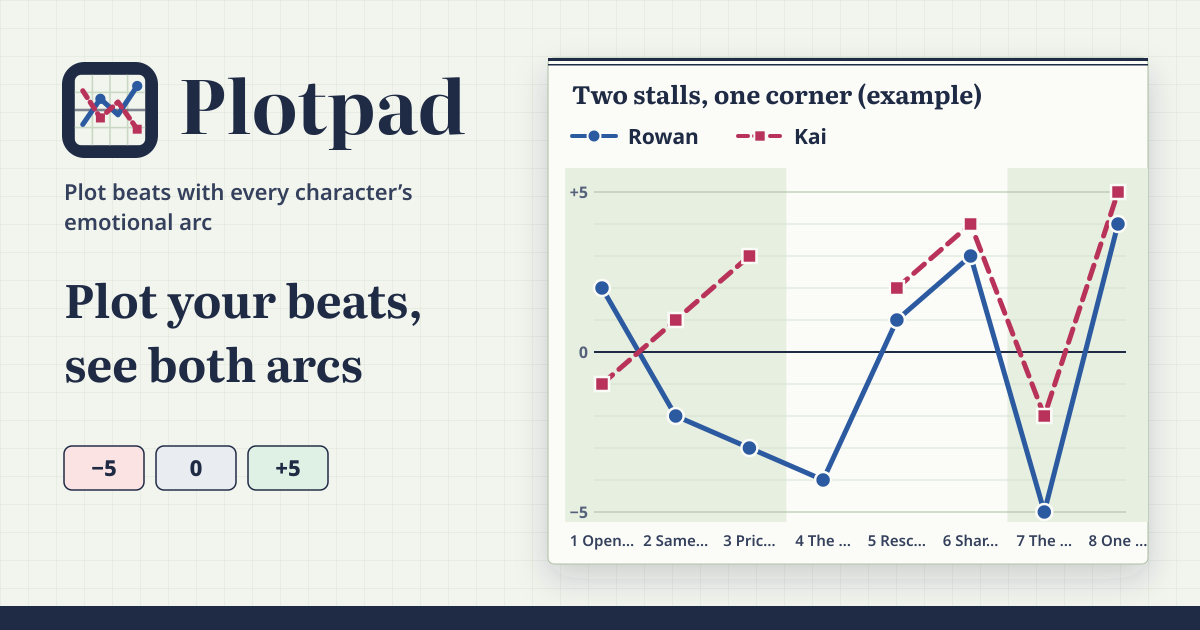
Plotpad is a plotting notebook for fiction. You lay out your story as beats on a timeline, and in every beat you note what each character feels (a feeling word and a value from −5 to +5) and what they think. Every character’s emotional arc is drawn on one line graph, so you see where two leads drift apart, where they meet and where the turn comes. It works for any pairing or genre: a romance, a rivalry, a mystery or a family story. Stories stay on this device; there is no account and nothing is uploaded.
Ganttpad plans projects as tasks on a schedule; Plotpad plans fiction, with characters and their feelings scene by scene.
Start blank or from a template
On your first visit the example story is already open. To begin your own, press “New story” and choose how to start; every new story comes with two characters, Character A and Character B, to rename. “Free” is the default and starts blank: add beats anywhere, with or without acts. “3-act structure” gives you Setup, Confrontation and Resolution with 8 starter beats to rename, from the ordinary world and the inciting incident to the climax. “Kishōtenketsu” (起承転結) gives you the four-part structure from East Asian storytelling with 8 starter beats. “Example story” opens a short finished story about two rival night-market stall keepers sharing one corner: eight beats with feelings, thoughts and their relationship filled in.
Add your characters
On the “Characters” tab, rename the two characters and press “Add character” for more, up to 8 per story. Each one takes a colour from 8 inks chosen to stay readable, plus a marker shape and a line style of their own, so the arcs can be told apart even without colour or in black-and-white print. Change the order with “Move up” and “Move down”; right after deleting a character, “Undo” brings them back.
Add beats anywhere
A beat is one scene or moment of your story. On a phone, “Insert a beat here” sits between the beat cards on the “Plot” tab, and every beat also has “Insert a beat before” and “Insert a beat after”, so a new scene goes exactly where it belongs. At the bottom of the list, “Add a beat at the end” adds one after the last. Give each beat a title and a note on what happens and, if you like, an “Act / chapter” label such as Act 1 or Chapter 3. A story holds up to 200 beats.
Feeling, value and thoughts in every beat
In every beat each character has three fields. “Feeling” takes a word such as hope, jealous or relief: type your own or pick one of the suggestions. The value runs from −5 (worst) through 0 (neutral) to +5 (best); step it with − and +, or clear it when the character has no value in that beat. “Thoughts” holds what they think or keep to themselves.
You type all of it straight into the “Timeline”. On a phone it is a vertical list of beat cards with a row per character inside each card, and nothing scrolls sideways. On a wide screen the beats are columns and every character has a lane of their own: read across to follow one character, and down to compare them within one scene.
Relationship notes and closeness
Under “Relationship” on the “Characters” tab, choose a pair, such as your two leads. Every beat then has a “Relationship note” for where the two of them stand and an optional “Closeness” from −5 to +5. Turn on “Show closeness as a line on the graph” to draw the pair’s closeness as one more dotted line next to their own arcs.
The emotion arc graph
“Emotion arcs” at the top of the “Plot” tab draws every character’s values as one line graph, beat by beat, with a legend that shows each character’s colour, marker and line style. A beat without a value leaves a gap in that character’s line instead of dropping it to 0, so an empty beat never reads as a neutral mood. Tap a point to open that beat and edit it. “Full screen” shows the graph across the whole screen, which helps with long stories.
Reorder beats and add template beats later
Every beat has “Move earlier” and “Move later” buttons; on a computer you can also drag a beat by its handle. If you started free-form and want a structure after all, go to “Add template beats” on the “Export & backup” tab and pick “3-act structure” or “Kishōtenketsu”. The template’s beats go next to beats of the same act or at the end; none of your beats is changed, moved away or removed, and beats already added from the same template are not added again.
Export a PNG, a PDF or a text outline
On the “Export & backup” tab, “Save PNG” makes a picture of the graph with its legend; tick “Include the timeline under the graph” to add the beats as a table. On computers and Android the file downloads; where the browser supports it, “Share” opens your device’s share sheet. On iPhone and iPad the picture opens large: touch and hold it, then choose “Save to Photos”. If a story has too many beats for the table in one picture, the PNG keeps the graph only and says so; the PDF has everything.
“Print or save as PDF” opens the print dialog; choose Save as PDF as the printer. The graph comes first and each act starts on a new page. The “Text outline” turns the story into Markdown or plain text, with headings per act and beat and one line per character; press “Copy” to paste it into your writing app, or “Download” to keep it as a file.
Several stories and a backup file
Open the story list to switch stories, start a “New story”, “Duplicate” one to try another version, or delete one; right after deleting, “Undo” brings it back. Plotpad keeps up to 50 stories, and changes are saved on this device as you type.
Your stories live only on this device, so press “Save backup file” now and then: every story goes into one file (JSON). On another device, “Restore from file” lets you choose “Add to my stories”, which adds only what is new and keeps everything here, or “Replace my stories”. Restoring the same file twice adds nothing.
Privacy: your stories stay on this device
Story titles, characters, beats, feelings, thoughts, relationship notes and settings are kept only in this browser on this device and never sent to our server. There is no account and no login. The PNG, the PDF, the outline and the backup file are made on the device and go only where you save or share them. After the first visit Plotpad also works offline. There are no ads in the tool.
Can I use it for any pairing or genre?
Yes. There are no fixed roles: name character A and B, or a cast of up to 8, as you like, and use it for romance, rivalry, friendship, a mystery or a family story. Feeling words are free text; the suggestions are only a start.
Does it work on a phone?
Yes. On a phone the timeline is a vertical list of beat cards with every character inside each card, and the graph fits the screen width; “Full screen” makes it bigger. On a wide screen such as a computer the beats line up as columns with one lane per character. You can add Plotpad to your home screen, and it works offline after the first visit.
Is my story uploaded?
No. Stories, characters and notes stay in this browser on this device and are never sent anywhere; the anonymous usage counter never includes a story title, character name, beat or note. Save a backup file to keep a copy or move to another device.
What is kishōtenketsu?
Kishōtenketsu (起承転結) is a four-part structure from Chinese, Japanese and Korean storytelling: ki introduces the characters and their world, shō develops it, ten brings a twist that changes how everything looks, and ketsu concludes by bringing the parts together. Unlike the 3-act structure it does not need a conflict to drive it; the twist does that. Plotpad’s template gives two starter beats per part.