It started with “send help, it’s shutting down”
The post appeared on the r/mealime subreddit. A user in the UK had been told that the app they had used every week for years — pick recipes, plan the week, walk into the shop with the list it produced by itself — was shutting down, and asked where to go. What they were about to lose was not the app so much as the loop: the weekly “what do we eat, what do we buy” answered in one sitting.
Look at what came back in the replies and a pattern repeats. Mealime had belonged to a large US grocery chain for some years, and the successor its users were pointed at, Meals Hub, is built around that grocer’s stores and that grocer’s country, which is no use to someone in the UK. The alternatives that were named instead — Origano in English and French, Spiceful, Eat This Much, Plan to Eat and Samsung Food in English — each want an account before anything else, several keep the useful parts behind a subscription, and above all they put the recipes back on somebody else’s server, which is exactly the thing that had just gone away.
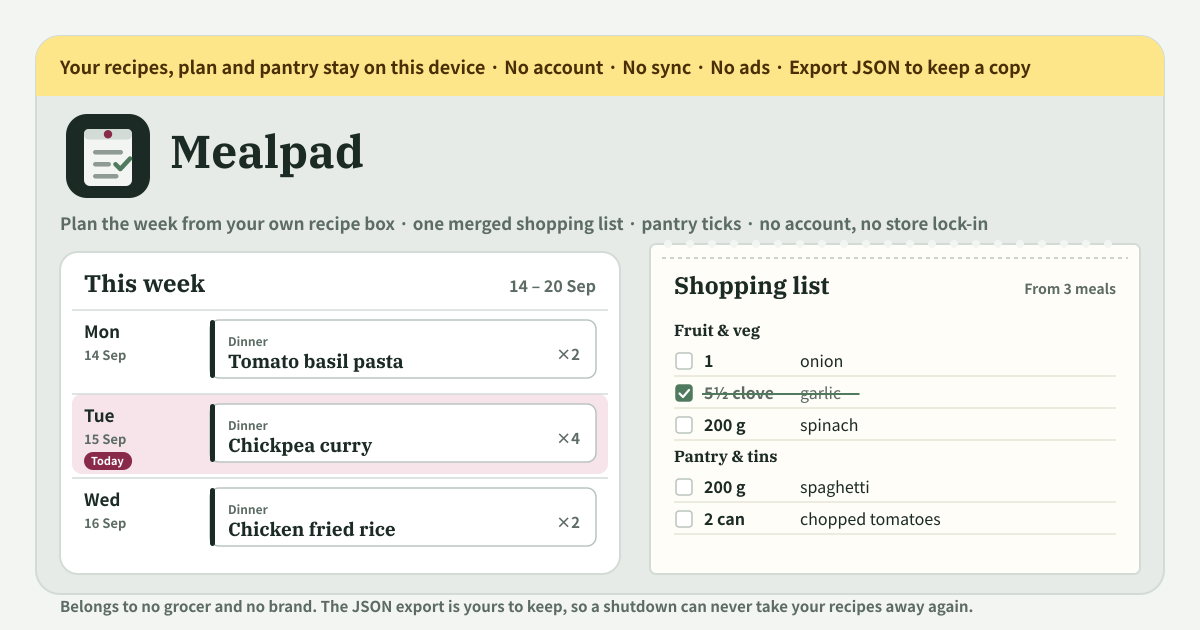
Mealpad is a different answer to that question. It keeps the Mealime loop as it was — a recipe box, a week board, a shopping list that merges itself, and a pantry for what is already in the house — and leaves out the account and the grocer. A recipe is a name, a number of servings and a few ingredient lines; written in Korean, English, Japanese or German, they all merge onto the same list; and everything stays in the browser on this device. Nothing here is tied to a store, a brand or a country, and the JSON export is yours to keep, so a company shutting down or changing hands can never take the recipes away again.
What Mealpad does
You start by filling the recipe box. A recipe is a name, how many it serves, optional minutes, and its ingredients one per line — ‘400 g spaghetti’, ‘1 can chopped tomatoes’, ‘3 cloves garlic’, ‘3 tbsp olive oil’, ‘salt’. As you type, the table below reads each line into amount, unit, item and aisle, so a wrong aisle is corrected on the spot. A method and tags are optional. If the box is empty, “Load 8 starter recipes” puts in eight in the UI language — tomato basil pasta, chicken fried rice, tofu vegetable stir-fry, red lentil soup, overnight oats, sheet-pan salmon and potatoes, egg and cheese sandwich, chickpea curry — to edit or delete as you like.
Then comes the week board. Weeks start on Monday, and every day has a breakfast, lunch and dinner slot. Tap “Add” in any slot and a sheet opens to pick a recipe and set the servings, pre-filled from “Usual servings” at the top and changeable per meal. A slot can hold several meals, and “Plan” on a recipe card gets you to the same place. Move to the previous or next week and back with “Back to today”; “Repeat last week” copies last week’s meals onto this week; “Clear this week” asks first and then removes this week’s meals, ticks and typed items — the recipes stay in the box.
Everything else is the shopping list. It builds itself from the week you are looking at — every meal’s ingredients scaled to its servings, the same item added onto one line, grouped by aisle. Tick lines off as you shop, undo with “Untick all”, and “Copy as text” puts the lines you have not ticked yet into a supermarket note or a message. Things no recipe mentions — 2 l milk, bin bags — go into the box under the list and land on that week’s list. What you always have — salt, oil — gets one tap of “Have it” and lives in the pantry, off the list every week. Pick the language with ?lang=ko, ?lang=en, ?lang=ja or ?lang=de on the address, and add it to the home screen to install it as a PWA that works offline.
How the list is built
The base is one line: each ingredient’s amount × (meal servings ÷ recipe servings). A recipe that serves four placed for two halves every ingredient; placed for six, everything is 1.5×. Once every meal of the week has been worked out this way, the same item in the same unit adds up onto one line, and the line says which recipes, at how many servings, it came from. Things bought whole — an onion, a can, a bunch, a pack — are rounded up to the next whole one after adding, because nobody sells half an onion. A line with no amount (‘salt’) comes out as “some”, and when a line with an amount meets one without, a + follows the number.
Units collapse to one set across languages. ‘tbsp’, ‘큰술’, ‘大さじ’ and ‘EL’ are the same unit; so are ‘pc’, ‘개’, ‘個’ and ‘Stück’, and ‘can’, ‘캔’, ‘缶’ and ‘Dose’. That is how 3 cloves garlic from a recipe written in English and 마늘 3쪽 from one written in Korean add up onto the same line — as long as the item is spelt the same way. Unit-first notation, as Japanese writes it (大さじ2, カップ1/2), fractions (½, 1/2, 1 1/2) and ranges (2–3 onions, the larger end) are all read. The aisle is guessed from the words in the item, and the longest match wins — ‘coconut milk’ is pantry & tins, not dairy, and ‘eggplant’ is fruit & veg. When the guess is wrong, change that line’s aisle in the preview table of the recipe editor. Aisles always come in the same order: fruit & veg, meat & fish, dairy, eggs & tofu, bakery, pantry & tins, frozen, spices, drinks, household, other.
Take an example. Put the starter tomato basil pasta (serves 4: 400 g spaghetti, 1 can chopped tomatoes, 3 cloves garlic, salt) on Monday dinner for two, and the chickpea curry (serves 4: 2 cans chickpeas, 1 can chopped tomatoes, 3 cloves garlic, 1 onion, salt) on Thursday dinner for six. Spaghetti: 200 g. Chopped tomatoes: ½ can + 1½ cans = 2 cans on one line, with both recipe names on it. Garlic: 1½ + 4½ = 6 cloves. Onion: 1½, but bought whole, so it rounds up to 2. Chickpeas: 3 cans. Salt has no amount, so it says “some” — and if you have ever tapped “Have it” on salt, it sits quietly in the pantry rows underneath instead of on the list. Those six lines are exactly what the list prints.
The pantry, the ticks and the week
The pantry is the list of what is always in the house. Tap “Have it” on any line of the shopping list and that item moves to the pantry: whichever recipe in whichever week mentions it, it stays off the list and shows in the “In the pantry” rows underneath instead — set aside rather than gone, so when you do run out, one tap of “Back on the list” puts it on the next list. The pantry matches by item name, ignoring case, spacing and full-width characters, so salt from any recipe is the same salt.
Ticks belong to the week. Tick what is in the basket on this week’s list and “n of m in the basket” counts up at the top; next week’s list starts clean, and “Untick all” resets only this week. “Copy as text” turns the lines you have not ticked yet into plain text with the aisle headings, ready for a supermarket note or the family chat. The items you type into the box under the list are read exactly like ingredient lines — ‘2 l milk’ goes to dairy, ‘bin bags’ to household — and belong to that week only. You can write them before any meal is on the board.
Where the recipes live, and backups
Recipes, the week plans, the pantry, the ticks, the typed items — everything sits in this browser on this device and nowhere else. There is no account, no server of ours and no sync; the app never contacts a server with your plan. It belongs to no supermarket, brand or country, so nothing in it is tied to a store catalogue. No ads on the tool UI, no in-app purchase, no limit on the number of recipes.
“Export JSON” under “Backup” writes the recipes, plans, pantry, ticks and typed items into one file that is made on this device and leaves only as a download. “Import JSON” merges rather than replaces: recipes are matched by name and, when the same name exists on both sides, the more recently edited copy wins; a meal is added once if the day, slot and recipe match; pantry, ticks and typed items are unioned. That is how you move to a new phone or another browser, or fold the boxes of two devices into one.
A new version of the app never shows an “update required” wall and never wipes the box. Deleting a recipe asks first, and says that it comes off any day it is planned on too. There is no copy anywhere else, so once the box has grown, export a JSON now and then.
Does it fetch recipes from the web, or suggest what to cook?
Neither. Mealpad has no recipe database, no “paste a URL” import, and no planner that fills the week for you by taste or calories. The recipes are the ones you wrote — and since a recipe here is a name, a number of servings and a few ingredient lines, pasting the ingredient list from a web page or a cookbook is all it takes — and what goes on which day is your decision. The eight starter recipes are there to get a feel for it, no more. There is no nutrition information either. What Mealpad is good at is the part after the decision: turning it into the shopping list.
Does it connect to a supermarket or order the groceries?
No, and that is the point of it. There is no store catalogue, no “add to basket” button and no delivery link. The app began with a meal planner being bought by a grocery chain and its users outside that grocer’s country being left with nowhere to go, so Mealpad is tied to no supermarket, brand or country. The list is plain text in aisle order, and “Copy as text” pastes it anywhere — a supermarket app’s note, paper, a message. It works the same in any shop in any country.
Can I write ingredients in Korean or Japanese, and do they still merge?
Yes. Ingredient lines are read in all four languages — ‘2 cups rice’, ‘양파 1개’, ‘간장 2큰술’, ‘玉ねぎ 1個’, ‘醤油 大さじ2’, ‘1,5 kg Kartoffeln’, ‘2 EL Olivenöl’. The number may come first or last, the decimal mark may be a comma or a point, and the unit collapses to one canonical unit. Lines merge when the item and the unit are the same, so ‘3 cloves garlic’ in an English recipe and ‘마늘 3쪽’ in a Korean one share a unit but not a name and stay as two lines — nothing is translated. Spelling the same item the same way every time is the whole trick. The item itself is free text, so ‘napa cabbage for kimchi’ is fine as it is.
What if the aisle is wrong, or an amount is not read?
The aisle is guessed from the words in the item, so an item it does not know goes to “Other”. Pick the aisle for that line in the preview table of the recipe editor; it is saved with the recipe and the list uses it from then on. The amount is read from the number at the start or the end of the line, so a line with two numbers — ‘chopped tomatoes 400 g 1 can’ — is ambiguous; keep the one you shop by (‘1 can chopped tomatoes’). A line whose amount could not be read is not dropped: it shows as “some”, so nothing is lost. The preview table exists precisely to check those two things before you save.
How do I move to a new phone, or share the list with my partner?
Moving is “Export JSON” and “Import JSON” under “Backup”. Export on the old device, import on the new one, and the recipes, plans and pantry arrive merged. There is no sync, so two people planning on two devices have two boxes — importing each other’s JSON now and then merges them by name, and a recipe with the same name keeps the more recently edited copy. If all you want to share is this week’s shopping, it is much simpler: “Copy as text” and send it in a message. Only the lines not yet ticked go, grouped by aisle.
How is it different from Mealime and Meals Hub, Origano, Spiceful, Eat This Much, Plan to Eat or Samsung Food? Is it free?
Three things. First, it belongs to nobody: it is not built around one grocery chain’s stores and country the way Meals Hub is, there is no account and so no server that can shut down or be sold, and the recipes are always in your hands as JSON. Second, language: where Origano is English and French and the rest are English, the UI comes in Korean, Japanese and German too, and ingredient lines in all four languages merge onto the same list. Third, the loop is the same: recipe box → week board → merged list → pantry tick, the Mealime habit carried over as it was. And it is free: no subscription, no account, no login, no in-app purchase, no ads on the tool UI, no limit on recipes. There is also something those tools do that Mealpad does not: no recipe database, no automatic planning, no nutrition information, and no sync between devices.