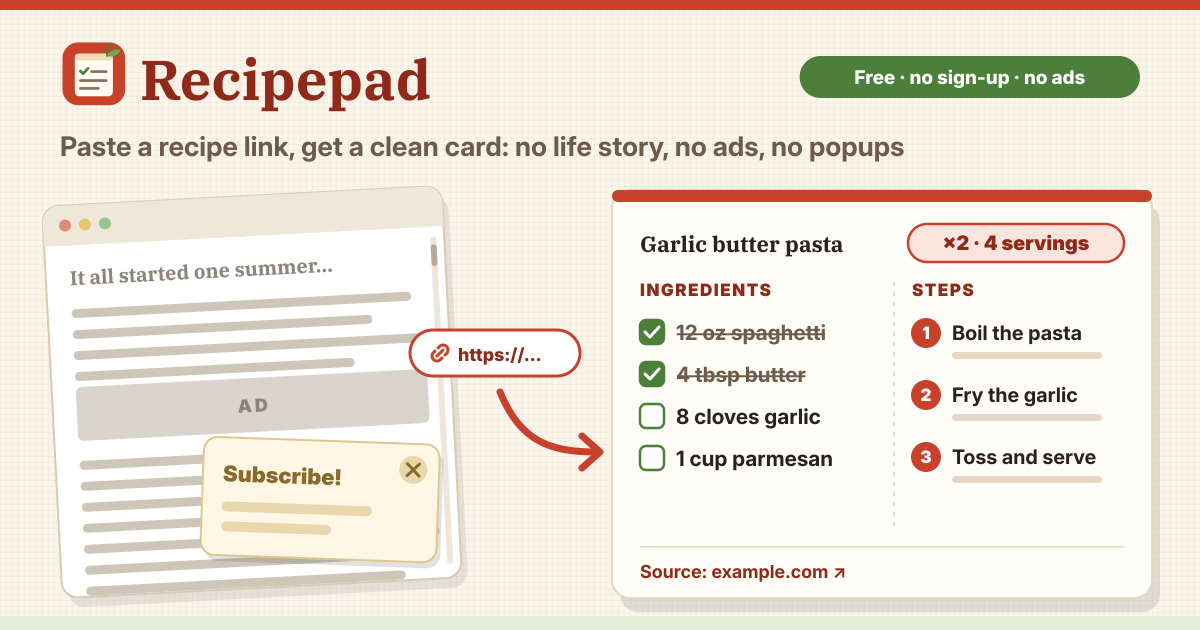
When you scroll forever just to find the ingredient list
You open a recipe and have to scroll past a long childhood story, a dozen ads and a few popups before the ingredients show up. Then the screen goes dark while you cook, and you scroll again with flour on your hands.
Recipepad turns a link into a card with just the ingredients and the steps, and keeps the source as a link on the card. It opens right in the browser with no install and no sign-up, in Korean, English, Japanese and German.
1. Paste a link, get a clean card
- Paste the recipe page address (starting with https://) into the box at the top and tap Get recipe. It reads just the name, servings, time, ingredients and steps from the recipe info many sites include for search engines.
- Stories, photos, ads, comments, ratings and nutrition are left behind. The card keeps a “Source: site ↗” link, so the original page is always one tap away.
- While it reads, Stop cancels it, and nothing is saved.
2. Some sites block reading — paste the page text instead
Some sites don’t include recipe info, and some block outside requests. Then you see a short message saying what happened, with a “Paste the page text instead” button right under it. Select the text on the recipe page (all of it is fine), copy it, paste it, and tap Find ingredients and steps.
Pasted text is read on this device only. It looks for headings such as Ingredients and Instructions (also in Korean, Japanese and German, like 材料, 作り方, Zutaten and Zubereitung), and reads “Serves 4”, “4人分” or “für 4 Personen” as servings. Without headings, lines that start with an amount become ingredients and numbered or long lines become steps.
3. Fix anything before you save
- Whether it came from a link or from pasted text, you first see Check it, then save. Fix the name, servings, time, source link, ingredients (one per line), steps (one per line) and tags, then tap Save. Nothing is saved until you do.
- Saved recipes can be changed any time with Edit on the card, and Delete asks once more before it removes anything.
4. Scale the servings
- Change the servings with − and + or the ×½ and ×2 chips on the card, and the amounts follow: 1/2 cup, 1½ tbsp, 0.5 kg, ranges like 2-3 cloves, and Korean or Japanese lines with the amount at the end. Cups and spoons show as fractions (¾ cup), grams and millilitres as decimals in your language (0.25 kg, German 0,25 kg).
- Lines without an amount, like “salt to taste”, stay as they are. The new servings only change what you see; the saved recipe changes only when you tap Save these servings.
5. One grocery list from several recipes
- Tap Add to grocery list on a card and its ingredients go on the list at the servings you are looking at. Do it for each recipe: the same item in the same unit is added up on one line (2 eggs + 3 eggs → 5 eggs), different units stay separate, and every line shows which recipes it came from.
- On the Grocery list tab, add your own items (coffee, say), tick things off as you shop, and tidy up with Clear checked items. Ticks stay after a reload.
6. Cook mode: one step at a time, screen kept on
- Cook mode fills the screen with one step at a time in big type. Move with Next step and Previous step, a swipe, or the arrow keys, and the top shows where you are, like 3 / 8. The Ingredients button opens the ingredient list at the servings you chose.
- While cook mode is open, it keeps the screen on. On iPhone this needs iOS 16.4 or later; in a browser that can’t, it tells you so, and tapping the screen now and then does the job.
7. Your own recipes, search and backups
- Write your own keeps family recipes as the same kind of card. Under Your recipes, search by name, ingredient or tag, and sort by recently changed or by name.
- On the Backup tab, Save a backup file puts your recipes and grocery list in one file. Restore from a backup file first shows what it will add, skips recipes that are already here, and asks again before Replace everything. A damaged file is refused and nothing changes.
Your recipes stay on this device; a link is read once
Your recipes and grocery list are saved only in this browser on this device, with no account and no sync. When you tap Get recipe, only the link you pasted goes to our server, which fetches that page once and sends back only the recipe; the page and the link are not kept. The counter that limits abuse uses a one-way value instead of your IP address and lasts one minute. Clearing site data deletes your recipes, so keep a backup file.
Planning the week? That’s Mealpad
Recipepad keeps recipes and makes a grocery list, but it doesn’t plan your week. To lay out breakfast, lunch and dinner from Monday to Sunday and get one shopping list for the week, use Mealpad (https://mealpad.try-dabble.com), which plans your week from recipes you type.
Does it work offline? Can I keep it like an app?
After the first visit, the recipe list, cards, scaling, the grocery list, cook mode and pasting page text all work without a connection. Only getting a recipe from a link needs the internet, and it tells you when you are offline. Add to Home Screen in your browser menu keeps it like an app.
Is it free? Where do I send feedback?
All of it is free, with no sign-up and no ads on the tool. If a site doesn’t work or something is missing, tell us with the Guide & Feedback button at the bottom right.