Plenty of apps hide photos — few of them show a date, keep your order or take a description
It started with a thread on Reddit’s r/iPhoneApps. Someone using a KeepSafe-style vault listed three things they were missing: the photos show no date, they cannot be arranged in the order the owner wants, and there is nowhere to write a description. Most apps called a vault stop at “hidden” and take no interest in making what is inside readable again. The one web alternative the thread found (a “photo vault studio” kind of site) is English-only.
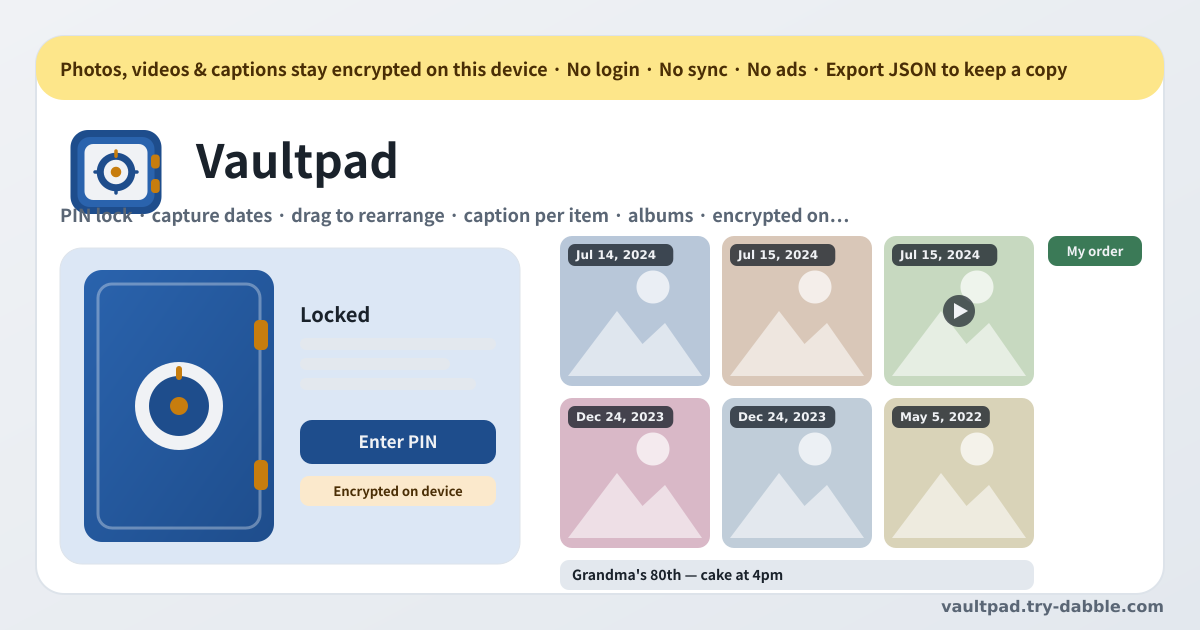
Vaultpad is a vault that fills those three gaps. Photos show the capture date written in their EXIF, tiles stay where your finger put them, and every item has room for whatever you want to say about it. It still does the vault part first: lock, encrypt, and never send anything off the device. No account, no server, no upload.
What Vaultpad does
The first time you open it you set a PIN or a password. The PIN itself is stored nowhere. The browser’s Web Crypto derives an AES-GCM key from it with PBKDF2-SHA-256, and that key encrypts the photos, the videos and the thumbnails on this device — and the metadata record holding captions, dates, albums and order as well. While the vault is locked nothing is visible: no thumbnails, no captions, no dates.
Once it is unlocked you get the grid. Every tile carries a date chip; at the top you switch between All, Photos, Videos, Favorites and each album, and the tile size is small, medium or large. Tap a tile and the detail view shows the photo full size or plays the video, moves to the previous or next item, tells you the date and where it came from, takes the description, sets the album, marks the favorite, exports the original or deletes the item.
How to use it
- Set a PIN or a password — a few digits, or a long sentence. It is not stored anywhere and there is no recovery, so pick something you will remember.
- Use Import to pick photos and videos from this device — the file picker takes several at once. Originals go in byte for byte, up to 200 MB per file. The encryption happens during the import, so give a big video a moment.
- In the grid, choose the tile size (small, medium, large) and the view (All, Photos, Videos, Favorites, an album). “My order” is the default sort; “By date (newest first)” is only a view and never rewrites your order.
- Turn on Rearrange and tiles can be dragged with the mouse or a finger, or moved one step, to the start or to the end with the arrow buttons. Rearranging inside an album view leaves the items you cannot see where they were.
- Tap a tile to open the detail view and write the description: up to 2000 characters per item, saved as you type. If the date is wrong you can set one by hand, and go back to the automatic one at any time.
- Albums can be created, renamed and deleted; deleting an album keeps its photos. Favorites are one star in the detail view.
- Pick the idle re-lock time: 30 seconds, 1, 2, 5 or 10 minutes, or “only when I lock it”. The default is 2 minutes. The screen blurs the instant the app goes to the background.
- In Settings, “Export JSON” puts the whole vault into one file; “Import JSON” brings it back on a new browser or after a reinstall. That file is the only answer to a lost phone.
The three things that were missing: dates, order, descriptions
- Dates. For JPEG photos the EXIF DateTimeOriginal is read, falling back to DateTimeDigitized and then the IFD0 DateTime. With no EXIF at all the file’s modified time is used, and failing that the import time. The chip on the grid shows the date; the detail view says which source it came from. Videos have no EXIF, so they use the file time.
- Order. In Rearrange, dragging a tile or moving it with the arrows saves that position for good; the app never re-sorts behind your back. “By date (newest first)” is a view you can turn on whenever you like, and turning it on does not erase your order. The same works inside an album.
- Descriptions. The field in the detail view takes up to 2000 characters per item and saves as you type, with no Save button to remember. Where it was taken, who was there, why this one was kept — it is the place to leave a sentence for the version of you who opens it years later.
What stays on this device, and what is encrypted
All of it stays, and all of it is encrypted. A PBKDF2-SHA-256 key derived from your PIN encrypts the original files, the thumbnails and the metadata record with the captions, dates, albums and order, all with AES-GCM. It happens in the browser’s Web Crypto, on this device. There is no server, no account, no sync, and no file ever leaves the device. There are no ads on the tool UI, no in-app purchases and no subscription.
The lock guards two ways. A wrong PIN makes the wait before the next attempt grow — 1 second, 2, 4 and on up to 60. And if you walk away, the vault locks itself after the time you chose (2 minutes by default), while the screen blurs the instant the app goes to the background. While it is locked there are no thumbnails, no captions and no dates to see.
Backup, changing the PIN, resetting
- “Export JSON” downloads the whole vault as one file, still encrypted under the current PIN — the file is the storage as it is, so opening it shows no photos.
- “Import JSON” asks for the backup’s PIN first, then offers Merge (items with the same id replaced, everything else kept) or Replace.
- “Change PIN” re-encrypts every file under the new PIN; with many items that takes a while.
- “Reset vault” runs only after you type the confirmation word, and erases everything including the PIN. It is the only road left when the PIN is forgotten.
- “Export original” in the detail view downloads that item’s original file as it came in, and hands it to the share sheet where the browser supports one.
Honest limits
- The encryption protects against casual access to browser storage. It does not protect against a compromised device or OS while the vault is unlocked.
- The vault lives in this browser profile’s storage. Clearing site data deletes it, so keep a JSON backup somewhere else.
- HEIC photos get thumbnails only where the browser can decode them. The original is kept either way.
- Big videos take time to encrypt on import. The per-file limit is 200 MB.
- The PIN is never stored, so it cannot be recovered. Forgetting it leaves resetting the vault as the only option.
What happens if I forget the PIN?
There is no way back. The PIN is stored nowhere and the key exists only as something derived from it. No server can mail a reset link and nobody holds the answer. The only option left is to reset the vault and start again — which is why a PIN you can remember and a JSON backup both matter.
Do the photos really stay on this device?
Yes. Imported files go into browser storage encrypted and are never uploaded; with no server there is nowhere to send them. There is no account and no sync, so the same vault never opens on another device. Moving to a new device means carrying the JSON backup file yourself — and that file is encrypted under your PIN too.
Where does the date on a photo come from?
For a JPEG photo the EXIF DateTimeOriginal — the moment the camera recorded the shutter — is read first. If that field is empty, DateTimeDigitized is used, then the IFD0 DateTime. Photos without EXIF and all videos use the file’s modified time, and failing that the import time. The detail view names the source it used, so if it is wrong you can set the date by hand and switch back to the automatic one later.
Will my order get shuffled later?
No. “My order” is the default sort, and a position you set in Rearrange is saved and stays. Importing new photos does not move what is already there, and “By date (newest first)” is a view that never rewrites the order — switch it off and your arrangement is back. Rearranging inside an album leaves the relative positions of the items outside it untouched.
Can I put videos in? What about size?
Yes. Videos are imported the same way as photos and play right in the detail view. Up to 200 MB per file, and the original is kept byte for byte, so nothing is re-compressed. A big video takes time to encrypt on import, so leave the screen open while it runs. Videos carry no EXIF capture date, so they use the file time — set the date by hand if you need to.
Will an update lock me out or wipe my data?
No. There is no “update required” screen. A new version simply takes over the next time you open the page, and the photos, videos, descriptions and order the previous version saved open with the same PIN. The only thing that erases data is “Reset vault”, and even that runs only after you type the confirmation word.
Is it free? Any ads, account or purchase?
Everything is free. There is no item limit, no locked album, no “videos are a Pro thing”. No ads on the tool UI, no account, no login, no sync, no in-app purchase, no subscription. It opens on Android and in any browser, and once installed with “Add to Home screen” it keeps working offline. If you have thoughts, use “Send feedback” on this page.