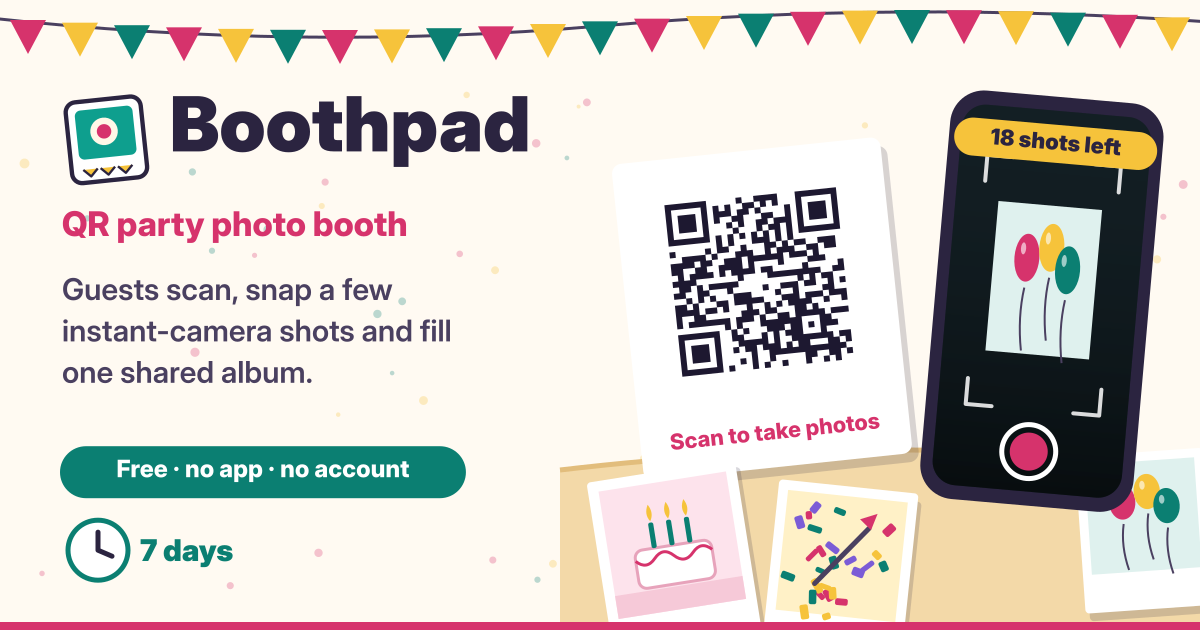
One QR code, everyone’s photos in one album
After a wedding, a birthday or an office party, the photos are scattered across guests’ phones, and asking everyone to send them to a group chat gets back maybe half. Asking them to install an app and sign up gets back even fewer.
Boothpad is a party photo booth that opens from one QR code. The host makes an event and puts the QR code on the tables; guests point their phone camera at it and start shooting right in the browser, a few shots each, like an instant camera. Nothing to install, no sign-up. Every photo lands in one shared album, and afterwards the host downloads the lot in one go. It is free, there are no ads in the tool, and it speaks Korean, English, Japanese and German.
Two things to know up front. Photos taken here are uploaded, and anyone with the event link can view and download them. And every photo is deleted automatically 7 days after the event is created, so download the ones you want to keep before then.
1. Create event
- Open Boothpad, type a name for the event (for example “Mia & Leo’s wedding”) and tap Create event. A date is optional.
- Each guest gets 24 shots by default; you can pick anything from 1 to 50. The whole event holds up to 600 photos by default, and you can set a lower cap from 5 to 600. 600 is enough for 40 guests taking 15 shots each, or 25 guests taking 24.
- The instant-camera frame is on from the start: a white border with the event name and date under each photo. Turn it off if you’d rather not have it.
2. Print the QR code or send the link
- Once the event exists you get a QR code. Print it with Print QR and put it on the tables or at the door, or download it as a picture (PNG) for an invitation or a screen.
- There is also a plain link to the same event. Use Copy link to paste it into a group chat, or the share button to send it straight away.
- Anyone who has the QR code or the link can see the album and take photos. The link is long and random, so nobody will guess it, but share it only with your guests.
3. Guests scan and shoot
- Guests point their phone camera at the QR code or tap the link. No app, no account.
- The first time, a short notice appears: photos are uploaded and visible to anyone with the link, they are deleted automatically after 7 days, the host can delete them any time, you can delete your own, and what not to photograph. Agree, and you’re in.
- Tap Open camera and the camera opens inside the browser. You can switch between the front and back camera, and a counter shows the shots left, like “18 of 24 left”. When they are gone, they are gone, which is half the fun.
- Before a photo goes up, the guest’s phone makes it smaller (long side up to 2048 pixels) and saves it again, which strips out the location and camera details a photo can carry.
4. If the camera won’t open
- iPhone (Safari): tap aA in the address bar → Website Settings → Camera → Allow, then tap Try again.
- Android (Chrome): tap the lock icon on the left of the address bar → Permissions → Camera, and allow it.
- On a computer: click the camera icon in the address bar and allow it.
- Still stuck? Tap Use your phone’s camera app to take the picture with your usual camera app or pick one. It counts against your shots the same way.
5. One album: download single photos or everything
- Everyone with the link sees the same single album, newest photos first. Tap a photo to see it full screen and download just that one.
- Download all (ZIP) saves every photo in the album as one ZIP file. Hosts, do this once the party is over.
6. Deleted automatically after 7 days: download before then
- 7 days after the event is created, everything is deleted automatically: photos, the event, reports. Deleted photos cannot be recovered, and there is no way to keep them longer here.
- So once the party is over, use Download all (ZIP) and keep the file on your own phone or computer. Tell your guests to save their favourites within 7 days too.
7. Keep the Admin link to yourself
- When you create the event, the Admin link is shown once. Anyone with it can delete photos, so keep it apart from the guest link. It is also saved on the device that created the event, under My events, so you can open it again there.
- Opened with the Admin link, you see hidden photos with the reasons they were reported, and the storage used. You can delete any photo, and delete or restore a reported one.
- Delete whole event removes the event and every photo right away. You have to type a confirmation first, so it can’t happen by accident. Use it when you don’t want to wait the 7 days.
8. Delete your own photos; Report hides a photo right away
- Guests can delete their own photos any time: the photos taken on the same phone, in the same browser, show a delete button.
- Every photo has a Report button. A report hides the photo from the album right away; the host then looks at it via the Admin link and deletes or restores it. try-dabble may also remove reported photos.
9. Shoot with care
- Only photograph people who are happy to be in the picture. If someone says no, leave them out.
- Don’t photograph sensitive personal details: ID cards, documents, addresses, phone numbers, phone or computer screens. Anyone with the link can see the album.
How long are photos kept?
7 days from when the event was created. After that, the photos and the event are deleted automatically and cannot be recovered. Use Download all (ZIP) before then. The host can also delete everything sooner with the Admin link.
Who can see the album?
Anyone with the event link (or the QR code). The link is long and random, so it can’t be guessed, but whoever has it can view and download the photos. Share it only with your guests.
How many guests and photos?
24 shots per guest by default, up to 50. One event holds up to 600 photos: enough for 40 guests taking 15 each, or 25 guests taking 24.
Do guests need an app?
No. Scanning the QR code or tapping the link opens it right in the phone’s browser. No sign-up, no name or email to enter.
I lost the Admin link.
Open Boothpad on the device and browser that created the event: it is saved there under My events. Without that device there is no way to get the Admin link back. The event is deleted automatically 7 days after it was created, so you can wait for that, or hide a problem photo right away with Report.
Is it free? Where do I send feedback?
Yes, it is free, with no sign-up and no ads in the tool. It never asks for your name, email or location. If something is missing, or you need to tell us about a photo, use the Guide & Feedback button at the bottom right, or Send feedback on this page.