When your phone fits but your eyes don’t
The ports on the back of your computer, the tangle behind the TV, something that rolled under the sofa, the top of a high shelf, a scar on your back that a mirror won’t show. Your phone can reach all of these, but then you can’t see its screen. Using the phone as the camera and a tablet or computer as the monitor solves it, but usually means two app installs and an account.
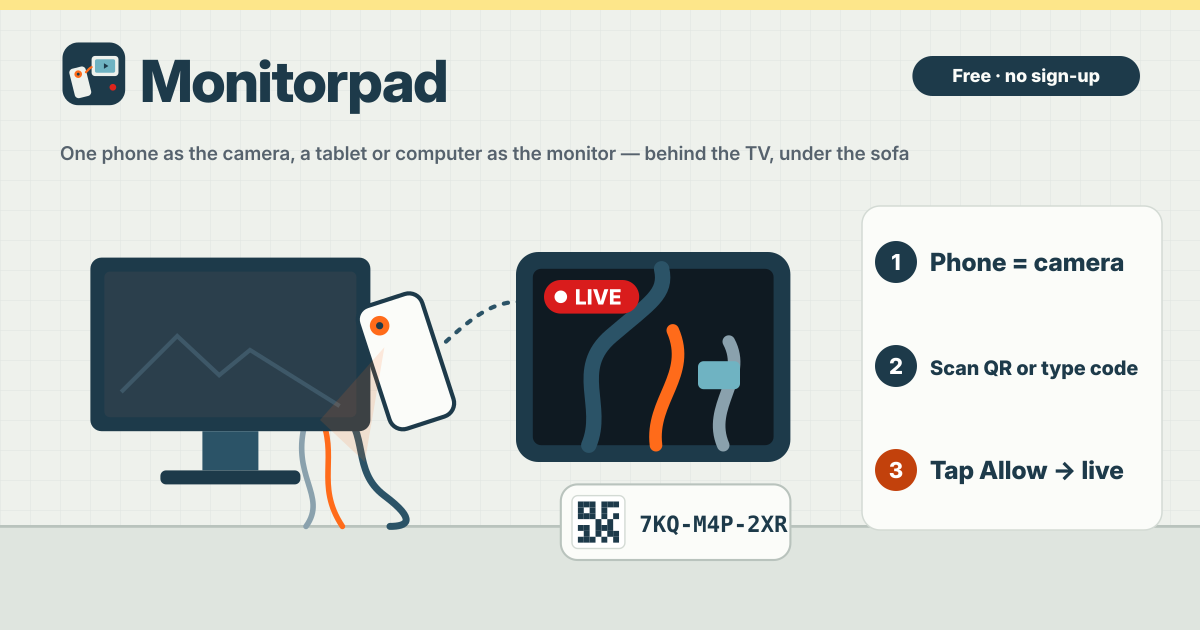
Monitorpad opens in the browser on both devices. Nothing to install, no sign-up. Start the camera on the phone, scan the QR on the other device, tap Allow on the phone, done. The interface is in Korean, English, Japanese and German.
1. Open it on the phone and start the camera
- Open Monitorpad on the phone and tap “Use this device as the camera”. Allow the camera when the browser asks. It starts with the back camera.
- Below the preview you get a QR, a code like “ABC-DEF-GHJ” and the time left. If nobody joins within 10 minutes the code expires; tap New code for another.
- You can also send the link to the other device with Copy link or Share link.
2. On the tablet or computer, scan the QR or type the code
- Scan the QR with the tablet’s camera app: the watch screen opens with the code already filled in.
- On a computer, open monitorpad.try-dabble.com, tap “Watch on this device” and type the code. Lower case, spaces and dashes don’t matter.
- The watching device shows “Waiting for the camera to allow…”. Nothing is shown yet.
3. Tap Allow on the phone
The phone shows the name of the device that wants to watch, like “iPad · Safari wants to watch”, with Allow and Deny. No video goes anywhere until you tap Allow. Once allowed, the camera screen shows a red “LIVE — showing to iPad · Safari”, and “Not sharing” whenever it isn’t. Only one device can watch at a time; another device with the same code is told “This camera is already showing to another device.”
4. On the watching side: full screen, rotate, mirror, snapshot, record
- Full screen fills the screen with the picture. Rotate turns it in 90° steps and Mirror flips it like a mirror, handy when looking at your own back.
- Snapshot saves the current picture as a PNG, and Record saves a video file. Both are saved on the watching device only and uploaded nowhere.
- On the phone, Switch camera changes between back and front, and on phones that support it you also get Light and Zoom. There is no sound.
5. Keep the phone screen on
On iPhone the camera stops if the screen locks or you switch apps. Monitorpad asks the phone to keep the screen on while it runs, but keep this screen open. If the camera screen is hidden for more than a few seconds, Monitorpad stops the camera, and if it was showing to someone it ends the session and tells the watching side. There is no hidden mode.
6. If it doesn’t connect
The video travels over a direct connection between your devices. If no picture arrives within 15 seconds you’ll see “Put both devices on the same Wi-Fi and try again.” Put both on the same Wi-Fi and tap Retry. Office or school networks, or two phones on mobile data, can block the connection. To finish, tap End on either side: the camera turns off and both screens say “Session ended”. Start again gets you a new code.
Can I use it as a webcam in Zoom or other video-call apps?
No. A browser can’t create a camera device for other apps, so Monitorpad can’t be a webcam for video-call apps. It does one thing: show the phone’s camera on another screen.
Is the video stored on a server?
No. The video goes straight from one device to the other. Our server only passes a few short connection setup messages so the two devices can find each other, and saves nothing. Recordings and snapshots are saved on the watching device only. There is no account and no history.
Is it free? Where do I send feedback?
All of it is free, and there are no ads on the tool. Send feedback with the Guide & Feedback button at the bottom right.