It started with “a simple one is fine” on X
On 15 October 2026, someone wrote on X in Japanese: “読みたい本の管理できるアプリないかな。シンプルなやつでいい。” Roughly: “Is there an app for keeping track of the books I want to read? A simple one is fine.” The wish is small: write down the books you want to read, move one along when you start it, and mark it when you finish.
Look around and this is what you find. The web trackers that need no account (MyBooks, mybooks.fyi) are in English only. 読書メーター (Bookmeter, bookmeter.com) is in Japanese, but you log in to record books and it is built around sharing with other readers. Goodreads and StoryGraph need an account too. Store apps such as Bookly cap the free version at around ten books and make it hard to get your list out. Each has its reasons, but a plain reading list that opens with no sign-up, in Korean, English, Japanese and German, was hard to find.
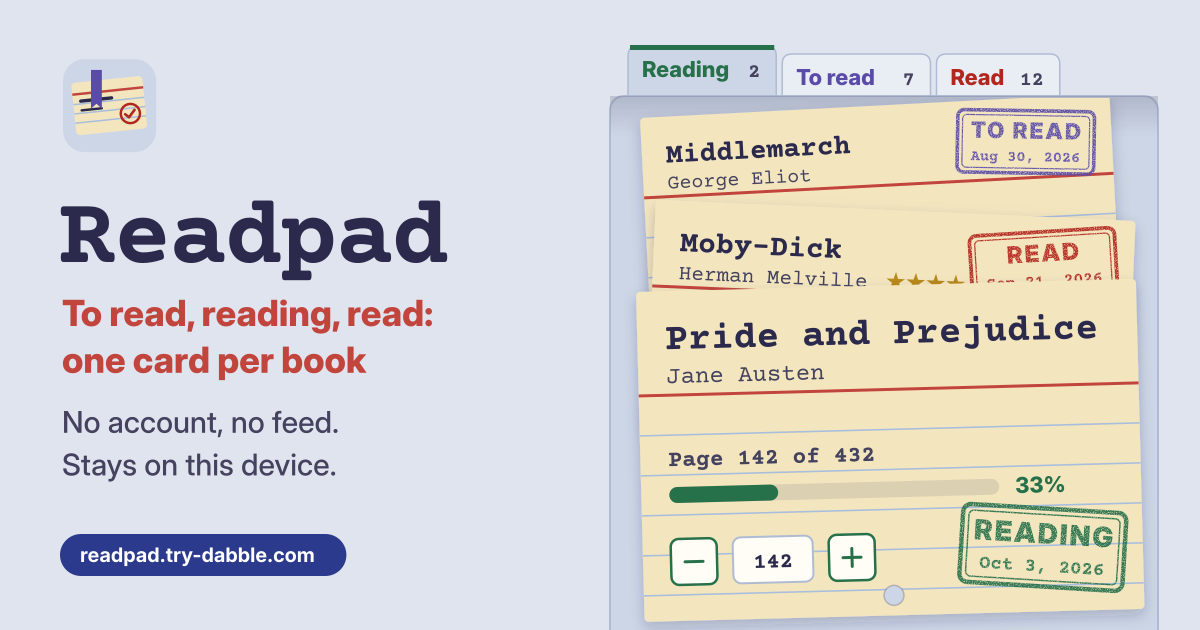
Readpad fills that gap. One book is one card, sitting under “To read”, “Reading” or “Read”, and one tap on the card moves it to the next. While you read, note the page you’re on; when you finish, add stars and the date. It opens in the browser, works without a connection after the first visit, has no account, no feed and no ads in the tool, and the list stays in this browser on this device.
What Readpad does
- At the top there are two buttons, “Add book” and “Backup & settings”. Below them the tabs read “All”, “Reading”, “To read”, “Read” and “Didn’t finish”, each with the number of books in it.
- Each book is a card with its cover, title, author and the day it reached its status. The move buttons on the card send it to another status in one tap; if that was a slip, “Undo” in the short message that follows puts it back.
- The search box (“Search title, author or notes”) looks in titles, authors and notes at once. “Sort” offers “Recently changed”, “Title A–Z”, “Author A–Z” and “Most read first”.
- A line above the list counts the books you finished this year, for example “Finished in 2026: 12 books”.
- An amber band at the top says it plainly: the books and covers live only in this browser on this device, so save a backup file regularly.
How to use it, step by step
- Open https://readpad.try-dabble.com and pick your language at the top. Nothing to install, nothing to sign up for. If you like, add it to your home screen from the browser menu and it opens like an app.
- Press “Add book” and type the “Title” and “Author”. Add “Total pages (optional)”, “ISBN (optional)” and “Notes” if you like, and pick where it goes under “Status”. You can also look it up and fill it in, as in the Open Library section below.
- For a cover, use “Choose a photo” to pick a picture on the device, or paste a picture’s address into “Image address” and press “Load”. Either way it is made small and kept on this device, and the address is fetched once, when you press Load. If the site will not let other pages copy its picture, save the picture and pick it with “Choose a photo” instead.
- Press “Save book” and the card takes its place. To change it, press “Edit” on the card; to remove it, press “Delete book” inside. A deleted book comes back with “Undo” in the short message that follows.
- The Guide & Feedback button at the bottom right of the app opens this guide in a new tab, and feedback is left on this guide page.
Page progress, and finishing a book
- A card under “Reading” has the “Page you’re on” with − and + buttons (“One page back”, “One page on”). To jump several pages, type the number straight into the box between them. Moving a card stamps today’s date on it: the day you started, finished or stopped.
- With the total pages filled in, a progress bar and a figure such as “42% read” appear; without them you see the page number only. The page you’re on cannot go past the last page.
- A book moved to “Read” can get 1 to 5 stars under “Your rating (optional)” (“No rating” clears it) and a “Finished on” date, which is what the count of books finished this year goes by.
- “Reading” keeps a “Started on” date and “Didn’t finish” a “Stopped on” date. If you never abandon a book, switch off Use “Didn’t finish” in “Backup & settings”: it leaves the tabs and the move buttons, and books already there stay.
Open Library lookup: what is sent, and when
- In “Add book”, under “Fill in from Open Library (optional)”, type a “Title, author or ISBN” and press “Search Open Library”. Press “Use this” on a match and the title, author, pages and cover are filled in. Check them, then “Save book”.
- The search runs only when you tap “Search Open Library”, and it sends just the text you typed to openlibrary.org; cover pictures of the matches come from covers.openlibrary.org. That is the only time Readpad goes online, and your list is never sent.
- Open Library misses many books, Korean and Japanese ones especially. If nothing turns up, or you are offline, type the book into the fields below; typing by hand always works.
Backup, and moving over from Goodreads or StoryGraph
- “Backup & settings” has two files. “Save backup (.json)” holds everything, covers included, and Readpad can read it back; “Export CSV” opens in any spreadsheet but leaves the covers out.
- “Choose a file…” takes a Readpad backup (.json) or a CSV with a Title column: the CSV you export from Goodreads or StoryGraph, or your own spreadsheet. Files separated by semicolons or tabs instead of commas, quoted cells and a leading BOM are all read.
- Goodreads shelves to-read, currently-reading and read land under “To read”, “Reading” and “Read”, and StoryGraph’s did-not-finish under “Didn’t finish”. When the import is done it says what changed, such as “3 new, 1 updated, 5 already here”.
- “Delete everything” in “Backup & settings” removes every book from this browser, and offers “Save backup first” before it does.
Privacy: your list never leaves the device
Titles and authors, pages, covers, ISBNs, notes, ratings, dates and settings are stored only in this browser on this device and are never uploaded or sent anywhere. There is no account and no login. The one outside request is the Open Library search: only when you tap “Search Open Library”, it sends just the text you typed to openlibrary.org, and the covers of the matches come from covers.openlibrary.org. An image address you paste is fetched once from that site when you tap “Load”. Covers are made small and kept on this device. JSON and CSV files are made on the device, and files you pick are read on the device only.
What it does not do
- Not a social network or a shop: no ratings from other people, no recommendations, no feed, no followers. Your stars are for you alone.
- It does not sync between devices by itself; to move the list, save a backup file and import it on the other one.
- There is no barcode scanner: type the ISBN, or search Open Library by title. Open Library data can be missing or wrong, so check it before you save.
- Not a 2D bookshelf of the books you own, with covers and spines on shelves — Shelfpad does that. Readpad is a list of what to read and how far you got.
- For TV shows, Showpad keeps a watchlist with episode ticks; Readpad is its counterpart for books. For anime and manga with a countdown to the next episode, Animepad is the one.
Does it work offline?
Yes. It works offline after your first visit: the browser keeps a copy of the app on the device, so it opens without a connection. Adding books, moving them and noting pages all work offline. Only the Open Library search needs a connection; offline it says “You’re offline. Type the book in below.”
Is there an account or a paid tier?
No. Everything is free, with no account, and the app sets no cap on the number of books. Export is free too. There are no ads in the tool.
How do I move my list to a new phone?
On the old device press “Save backup (.json)” in “Backup & settings” (covers included), move the file to the new one and import it with “Choose a file…”. Importing adds new books, updates matching ones and leaves the rest as they are.
Is Open Library required?
No. Typing books in by hand gives you everything. Open Library is an option you tap only when you want a title or ISBN filled in for you; if you never tap it, Readpad sends nothing anywhere.