It started with “too many taps to save a show”
On Reddit's r/anime, someone asked for a Letterboxd-style way to keep track of anime and manga: covers first, quick to save, without a pile of scoring fields. The big tracking sites take several steps just to add a show.
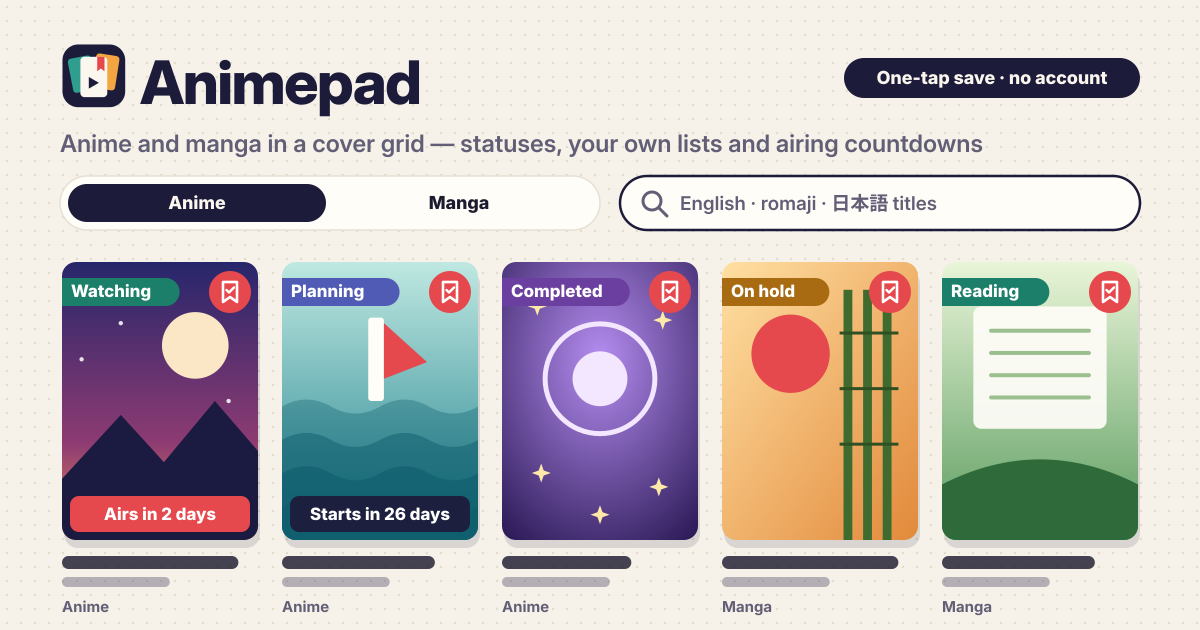
Animepad opens in a browser and saves a title with one tap on its cover's bookmark, with no sign-up. The interface is in Korean, English, Japanese and German. Titles come from the public Kitsu database, and your library is saved in this browser only.
Find it, save it in one tap
- On the Search tab, pick Anime, Manga or Both and type a title. “Frieren”, “Sousou no Frieren” and “葬送のフリーレン” all find the same show. Enter searches at once; the × inside the box clears it.
- One tap on the bookmark at the top right of a cover saves it to Planning, and “Saved to Planning · Change” appears at the bottom.
- Tap the cover itself for the larger cover, the English, romaji and Japanese titles, type, status, dates, episode or chapter count, Kitsu's synopsis (in English) and a View on Kitsu link.
Status, your own lists, progress
- Tap a saved cover's bookmark again to open its sheet. Pick Planning, Watching, Completed, On hold or Dropped. For manga, Watching reads Reading.
- In the same sheet, tick lists or type a new list name to make one on the spot. A title can be in many lists. Rename or delete lists under Your lists in the Library tab; deleting a list keeps its titles in your library.
- The +1 button counts episodes watched or chapters read. Marking a title Completed fills the counter when the length is known. There are no score or review fields.
- The Library tab is a cover grid. Filter it by the status chips (with counts), by list and by kind (All, Anime, Manga), and sort by recently updated, title or start date.
The Airing tab and reminders
- From my list shows the titles in your library that are airing or coming soon, soonest first, with badges such as “Airs in 2 days” or “Starts in 26 days”.
- This season (arrows for the previous and next season) and Upcoming let you browse covers and save any of them with one tap.
- Turn on Remind me with the bell under a cover or in its sheet: while this page is open, a notification appears shortly before a new episode or on the start day. A browser can't remind you once the page is closed, and on iPhone notifications only work after Add to Home Screen.
- For reminders that always work, Add to calendar (.ics) puts the next dates of your reminded titles into your phone's calendar: 15 minutes before an episode with a known time, and 9:00 the day before a start date.
Your library stays in this browser
- Saved titles, statuses, lists and progress are saved in this browser only. When you search or open a list, all that goes to the Kitsu database is the words you typed (or the season), never your library.
- Each saved title keeps its titles, cover address and dates, so the library and From my list open without internet, and so do searches you made before.
- Export backup saves a file; Import backup lets you Merge (add to what is here) or Replace. Delete everything asks once more first. Export before you change phones.
Where do the titles come from?
From the public Kitsu database (kitsu.app). Titles, covers, air dates and synopses are shown as Kitsu provides them; synopses are in English. Adult titles are not shown. Air times can change, so check the broadcaster or publisher when it matters.
Does it sync with MyAnimeList or AniList?
No. There is no account or sign-in, and it does not connect to other sites. Use the backup file to move to another device.
Is it free?
All of it is free. The number of titles, lists, reminders and backup are not locked, and there are no ads on the tool.
Does it work offline? Can I put it on my home screen?
Once opened, your library opens without internet too; only new searches need a connection. Use Add to Home Screen in your browser's menu to keep it like an app. Send feedback with the Guide & Feedback button at the bottom right.