It started with “not just loyalty or membership cards” on r/androidapps
The post appeared on the r/androidapps subreddit. Someone wrote: “I’m looking for a digital wallet that also accomodation to store offline cards like personal ID, healthcare info, etc. things like that, not *just* loyalty or membership cards… bonus if it can backup in an easily readable (app-agnostic?) form”. Around the same time, people on r/degoogle who were leaving Google Wallet were asking what to use instead. Two wishes stand out: the cards should work offline and include more than shop cards, and the backup should be something any app can read.
Look around and this is what you find. In 2024 Stocard moved into the Klarna app, which needs a Klarna account, and people started asking how to export their cards. Catima is a good open-source app, but it is Android-only, and one store review asks for things like “Manually sort card order” and “Adjust card size (2 or 3 columns…)”. The options on the web were either self-hosted or English-only. Each has its reasons, but a card wallet with no install and no account, that opens on an iPhone and an Android phone alike, in Korean, English, Japanese and German, was hard to find.
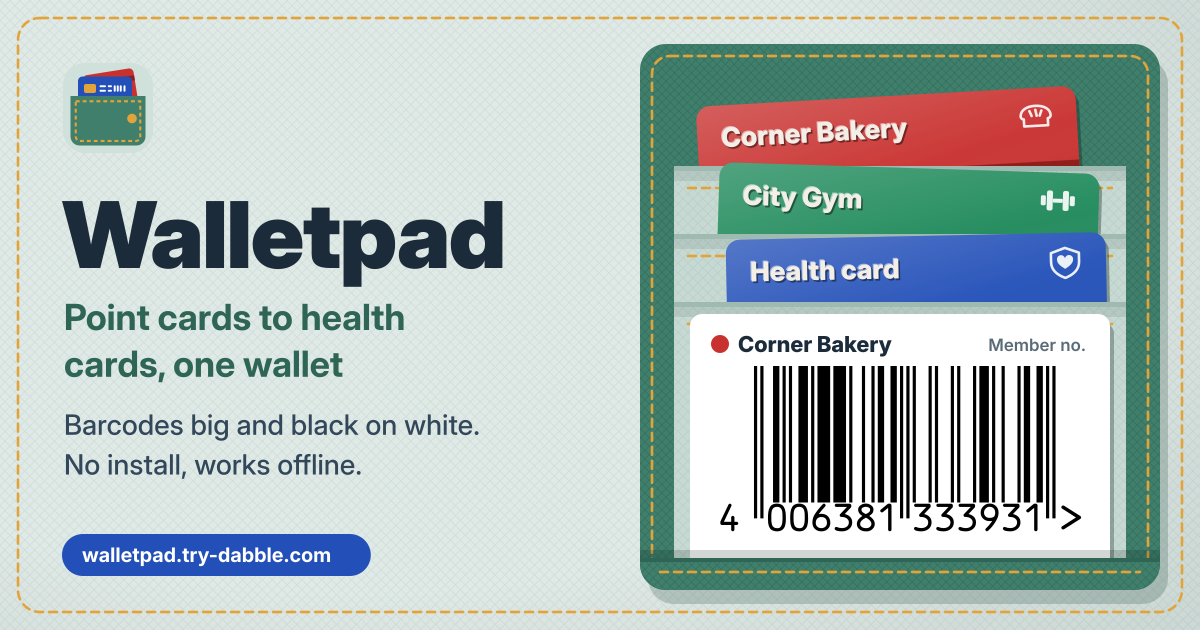
Walletpad fills that gap. Shop barcodes are shown big at the till, black on white; ID and health-insurance cards are kept as front and back photos with their details. You set the order yourself, view 1, 2 or 3 cards per row, and save backups as CSV and JSON that any app can open, plus a ZIP that carries the photos. A Catima export comes straight in. It opens in the browser, works without a signal after the first visit, has no account and no ads in the tool, and the cards stay in this browser on this device.
What Walletpad does
- There are three tabs: “Cards”, “Backup” and “Settings”. “Cards” lays out your wallet as tiles, with a search box, “Add card” and “Scan a card” on top.
- A barcode is scanned with the camera (the browser’s own BarcodeDetector where there is one, zxing-js otherwise), read from a picture, or typed in as a number and a type. All reading happens on the device, and camera frames are not kept.
- QR, EAN-13/8, UPC-A/E, Code 128/39/93, ITF, Codabar, PDF417, Aztec and Data Matrix are drawn on the device, always black on white. Type 12 digits for an EAN-13 and the check digit is added; a wrong check digit is refused with a message instead of being saved.
- One card can hold several codes, a member barcode and a coupon for example, shown as tabs on the card. ID and health-insurance cards keep a front and back photo and their details.
- An amber band at the top says it plainly: the cards and photos live only in this browser on this device, so save a backup file regularly.
How to use it, step by step
- Open https://walletpad.try-dabble.com and pick your language at the top. Nothing to install, nothing to sign up for. If you like, add it to your home screen from the browser menu and it opens like an app.
- For a shop card, press “Scan a card” and hold the barcode up to the camera. No camera, or only a photo of the card? Under “Add card”, choose “Scan from image”; for a worn barcode, use “Type a code” and fill in “Number or text” and “Barcode type”. “Scan with camera” adds more codes to a card later.
- Give it a name, pick its “Kind” (Points, Membership, ID, Health or Other) and a colour. Turn on “Favourite (always on top)” for the cards you use most and they always come first. Save.
- At the till, tap the tile to open the card and press “Full screen”. The next section has the details.
- To remove a card, press “Delete card” on it; “Restore” in the short message that follows brings it back.
At the till: full screen
- “Full screen” shows a white screen with just the barcode and large digits. If the scanner misses it, read the digits out, or use “Copy number” to paste it into another app.
- While full screen is open, the screen is kept awake (“Screen stays on” shows when the browser supports Screen Wake Lock). A browser cannot raise the screen brightness, so turn it up yourself if the scanner struggles.
- On a phone held upright, a 1D barcode (the striped kind, EAN or Code 128) is turned to landscape so its bars get the long side of the screen; “Rotate” flips it back. 2D codes such as QR stay as they are.
- A card with several codes lets you step to the previous or next code in full screen too. The barcode is drawn on the device without a connection, so it opens in a basement shop with no signal.
ID and health cards, and the PIN
- Set the “Kind” to ID or Health and take or choose a photo for “Front” and “Back”. “Add ID or health details” opens “ID number”, “Insurer”, “Blood type”, “Allergies” and “Emergency contact”, and “Add field” makes fields of your own.
- In “Settings”, “Set a PIN” of 4 to 12 digits hides ID and health cards. Their tiles show only “Locked”, search does not look into their details, and saving a backup asks for the PIN first.
- Once unlocked, they stay open until you leave the page, and lock again when you do. “Lock now” locks them at once.
- The PIN is checked on the device; it is not encryption. It keeps a quick look at your phone away, but someone with full access to this browser’s data could still read the cards.
- A PIN cannot be recovered. “Forgot the PIN?” offers “Remove PIN and cards”, which removes the PIN together with the locked cards on this device; bring them back from a backup if you have one.
Order, search and cards per row
- “Order” has four choices: “My order”, “Most used”, “Recent” and “A–Z”. Favourites come first in every one of them.
- “Reorder” lets you build your own order: drag a card by its handle, or move it one step at a time with the arrows.
- Search finds a card by name or number (spaces inside a number are ignored) and also looks in notes and fields.
- Pick “1 per row”, “2 per row” or “3 per row” for the tile size: 3 when the wallet is full, 1 when you want them big.
Backup, and moving over from Catima or Stocard
- The “Backup” tab has three files. “Save backup with photos (.zip)” puts walletpad.json, cards.csv and a photos folder in one file; “Save backup (.json)” is a plain-text backup without photos; “Export CSV” writes one row per code, readable in any spreadsheet. Any app can open all of them.
- “Choose a file…” takes a Walletpad backup (.zip, .json or .csv) or a Catima export (its catima.csv, or its .zip saved without a password). Before anything is imported it shows what will happen, such as “3 new, 1 updated, 5 already here”.
- From Catima, a card’s groups go into a line at the end of its notes, and a number without a barcode type is kept as a “Card ID” field rather than given an invented barcode. Favourites, colours and front and back photos (from a ZIP) come along.
- A data file from Stocard is not read directly. Scan the barcode from the plastic card or from a screenshot with “Scan a card” or “Scan from image”, or enter the number with “Type a code”.
- After 10 changes, or 7 days of unsaved changes, a backup reminder appears; “Later” puts it off for a while. “Delete everything” in Settings offers “Save backup first”.
Privacy: the cards never leave the device
Card names and codes, front and back photos, ID and health details, notes, the PIN setting and other settings are stored only in this browser on this device and are never uploaded or sent anywhere. There is no account and no login. The camera is used on the device only while you scan, and its frames are not kept. ZIP, JSON and CSV files are made on the device, and files you pick are read on the device only.
What it does not do
- Not linked to any shop: it shows the codes you saved and does not fetch point balances or offers. Some tills only accept the shop’s own app.
- It cannot add Apple Wallet or Google Wallet passes, and it does not pay: no payment cards.
- A stored ID photo is a copy for your reference, not an official ID.
- The browser cannot raise the screen brightness; turn it up yourself if a scanner struggles.
- The PIN is not encryption. For an encrypted photo vault, Vaultpad is the one.
- Not a credit-card benefit picker for deciding which card to pay with — Cardpick does that.
Does the barcode open without a signal?
Yes. It works offline after your first visit: the browser keeps a copy of the app on the device, so it opens without a connection. The barcode is drawn on the device too, so it shows in a basement shop or in flight mode.
Is there an account or a paid tier?
No. Everything is free, with no account and no limit on the number of cards. There are no ads in the tool.
What if I forget the PIN?
A PIN cannot be recovered. “Forgot the PIN?” removes the PIN together with the locked ID and health cards; your points and membership cards stay. So if you keep ID cards here, save a backup with photos now and then.
How do I move my cards to a new phone?
On the old device press “Save backup with photos (.zip)” in the Backup tab, move the file to the new one and import it with “Choose a file…”. Importing adds new cards, updates matching ones and leaves the rest as they are.