Your own record for commission and tipped work
If you work on commission and tips as a stylist, barber or nail tech, it is hard to know whether your pay is right. There are dozens of services, the tips come in cash and on card, the rate changes with your sales, and booth rent or deductions and advances come off too. The salon’s report alone can’t show you what is missing.
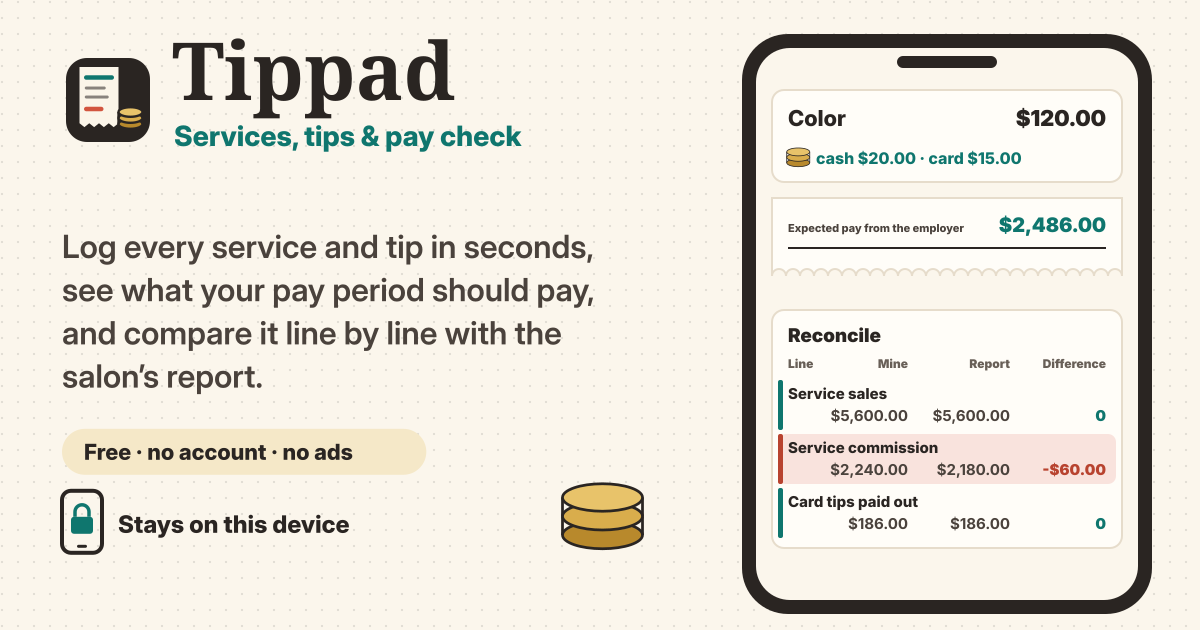
Tippad is a free private log for that check. Log each service and tip in about five seconds after each checkout, set your pay model once, and every pay period shows the expected pay from the employer and your total earned. Type in the figures from the salon’s report and it shows what differs, line by line. There is no sign-up and no ads, and everything stays in this browser on this device; nothing is uploaded. It speaks Korean, English, Japanese and German.
1. Five seconds after checkout: log a service
- Tap Add, pick the service button and type the price. You make the service buttons, and put them in order, under Services in Settings.
- Put the tip in Cash tip or Card tip, the way you got it. The two are counted differently in your pay, so this is the one thing to get right. If you sold products, put the amount in Retail (product sales).
- When clients come back to back, tap Save & add another: it saves and opens a fresh entry straight away.
- Open More: client, note, time, date to add a client code, a note, the time or another date. Use initials or a short code as the client code, not a full name. Changing the date lets you log an earlier checkout later.
- Tap an entry to edit it. If you delete one by mistake, Undo brings it back.
2. Busy days: totals only
- If there was no time to log each service, switch on Totals only (one line for the whole day) in Add and write the whole day as one line.
- You fill in Commission sales for the day, cash tips, card tips, the number of services and, if some services pay a flat amount each, the flat pay earned. Empty fields count as zero.
- Day totals count in your pay exactly like single services, and you can mix both ways in the same pay period.
3. Set up your pay once: commission, flat pay, retail, card tips, booth rent, deductions
In Settings, under Pay, enter your deal with the salon and tap Save pay settings. It starts with example values (40% commission, 10% on retail), so change them to your own.
- Commission sales: the prices of your commission services plus the Commission sales for the day of any day totals, added up over the pay period.
- Commission tiers: use + Tier to add a From amount and a Rate %. The first tier starts at 0. With a single tier, all sales are paid at the same rate.
- Each slice at its rate (the default): the sales are cut at each threshold, and every slice is paid at its own tier’s rate.
- Whole amount at the tier reached: all of the sales are paid at the rate of the highest tier reached. Landing exactly on a threshold counts as reaching it.
- Example: tiers 0 → 40%, 3,000 → 45%, 5,000 → 50%, and sales of 6,000. Each slice at its rate: 1,200 + 900 + 500 = 2,600. Whole amount at the tier reached: 50% × 6,000 = 3,000.
- Flat per service: set a service to Flat per service under Services in Settings, and it pays a fixed amount each time. The amount is copied onto each entry when you save it, so changing it later never rewrites past entries. The price of a flat service is not commission sales.
- Retail commission: retail sales × Retail commission %.
- Card-tip fee: if your salon keeps a share of card tips for the card fee, enter the Card-tip fee %. The fee is shown as its own line in your pay. Leave it at 0 if they don’t.
- Cash tips: you already hold them, so they are not part of what the employer pays; they are added to Total earned only.
- Booth rent: a fixed amount taken off per pay period. 0 if you don’t pay booth rent.
- Deductions and advances: on the Pay screen, use + Deduction / advance to note an advance, a product charge, a fee or another deduction in that period. They are all subtracted from your pay.
4. Pay periods
- Under Pay period in Settings, pick how the salon pays: Weekly (choose the day the week starts), Every 2 weeks (choose one first day of a 2-week period), Twice a month (1–15, 16–end), Monthly, or Custom range.
- With Custom range you pick the dates on the Pay screen. Otherwise, the arrows on the Pay screen step to the previous or next period.
5. Expected pay from the employer vs Total earned
The Pay screen shows the sum for one pay period, line by line. Each line is worked out on the period’s totals and rounded once, so small rounding differences per service don’t pile up.
- Expected pay from the employer = service commission + flat pay per service + retail commission + card tips paid out (after the card-tip fee) − booth rent − deductions and advances.
- Total earned = expected pay from the employer + cash tips (already in your hand).
- The cash tips total is shown for your own records only. Tippad gives no tax advice.
- Under the sum, the Pay screen lists the entries in that period, so you can see exactly what went into it.
6. Reconcile: compare with the salon’s report, line by line
- On the Pay screen, switch to Reconcile and type whichever of the salon’s figures you have: service sales, commission, flat pay, retail commission, card tips paid out, deductions, booth rent and net pay (the Expected pay from the employer line). Leave a line empty if the report doesn’t show it.
- The table has three columns: Mine, Report and Difference, where Difference = report − mine. Zero shows a green “matches”, a negative number a red “report is lower by …”, a positive number an amber “report is higher by …”, and an empty line “not entered”.
- Copy as text (or Share) turns the period, the table and that period’s entries into plain text. It only happens when you tap it, and the text goes only where you paste or send it.
- If something differs, copy the summary first and check your entries line by line before talking to the salon: a missed service or a card tip typed as cash often explains it. Whatever difference is left, you can then ask about calmly, with the summary in hand.
- Note about this report keeps a date or an explanation you were given, saved together with the figures.
7. List, calendar, totals and chart
- Log switches between List and Calendar. The calendar shows sales and tips per day, and tapping a day shows its entries. Search looks in service, client and note.
- Totals shows service sales, the number of services, retail sales, cash tips, card tips, deductions and the average tip (tips ÷ service sales) for a Week, Month, Year or Custom range.
- Commission, expected pay and total earned add up the pay periods that end in the chosen range, each worked out just like on the Pay screen.
- The chart shows the last 8 pay periods as bars of total earned, each split into expected pay and cash tips.
- For a dark screen, choose Dark under Appearance in Settings.
8. CSV export and the backup file
- Export CSV in Settings saves every entry and deduction as a CSV file for spreadsheet apps. Deductions have a negative amount in the price column.
- Download backup makes one backup file with everything (services, entries, deductions, reports and pay settings) on this device and saves it where you choose.
- Restore from backup merges the file into what is here: it adds what is missing, keeps the more recently edited version of the same record, never deletes and never duplicates. Restoring the same file twice changes nothing.
- Before anything changes, a preview shows how many records are new, already here, newer in the file and older in the file.
9. It stays on this device
- Services, tips, pay settings and reports are stored only in this browser on this device, and nothing is uploaded. No sign-up, no account, no ads and no limits on how much you log.
- On iPhone and iPad, put Tippad on your Home Screen with Add to Home Screen in Safari, because Safari may clear a website’s data after 7 days without a visit. Download a backup regularly, and always before clearing your browser data or changing phones.
- If something is missing, tell us with the Guide & Feedback button at the bottom right.
How it differs from Hourpad, Paypad and Receiptpad
Hourpad tracks the hours you work, with check-in, breaks and check-out, and keeps an overtime bank against a weekly target. If you are paid by service and tips rather than by the hour, Tippad is the one.
Paypad splits income into envelopes as it lands: check your pay with Tippad, then split it there. Receiptpad keeps photos and amounts of receipts, so the receipts for tools and supplies you buy for work belong there.
Can it read my salon’s app automatically?
No. A tool that runs in your browser can’t read other apps or the salon’s system. Instead, you spend about five seconds after each checkout typing it in yourself, and that is exactly what makes it your own record to compare with the salon’s numbers.
What if my salon’s numbers differ?
Enter the salon’s figures in Reconcile and see which line differs and by how much. Check that period’s entries line by line first: a missed service, a card tip typed as cash or a day in the wrong period often explains it. For whatever is left, copy the summary with Copy as text and talk it through calmly with the salon.
Does it give tax advice?
No. Tippad is a personal record that adds up what you typed according to your pay settings; it is not payroll and not legal or tax advice. The cash tips total is shown for your own records only. For taxes, ask a tax professional or your tax office.
Can I use it for two salons?
Not yet. For now there is one set of pay settings and one pay period, so it fits one salon. If you need more than one, tell us with the Guide & Feedback button.
How do I move to a new phone?
Tap Download backup in Settings, move the backup file to the new phone, and choose Restore from backup in Tippad there. Restoring merges: nothing on the new phone is wiped, nothing is duplicated, and restoring the same file twice changes nothing.
What isn’t there yet?
Not yet: insights, goals, more than one workplace or salon, photos of the salon’s report, shift hours, and CSV import. If you need one of them, tell us with the Guide & Feedback button.