When receipts pile up and you just want them in one place
Doing a yearly expense log means having the year’s receipts at hand. All you want is to photograph them on your phone, note a few things, then hand the whole folder to a spreadsheet on your computer, yet most apps come with approvals, reports and accounting links. It feels like being handed an aircraft carrier to go fishing.
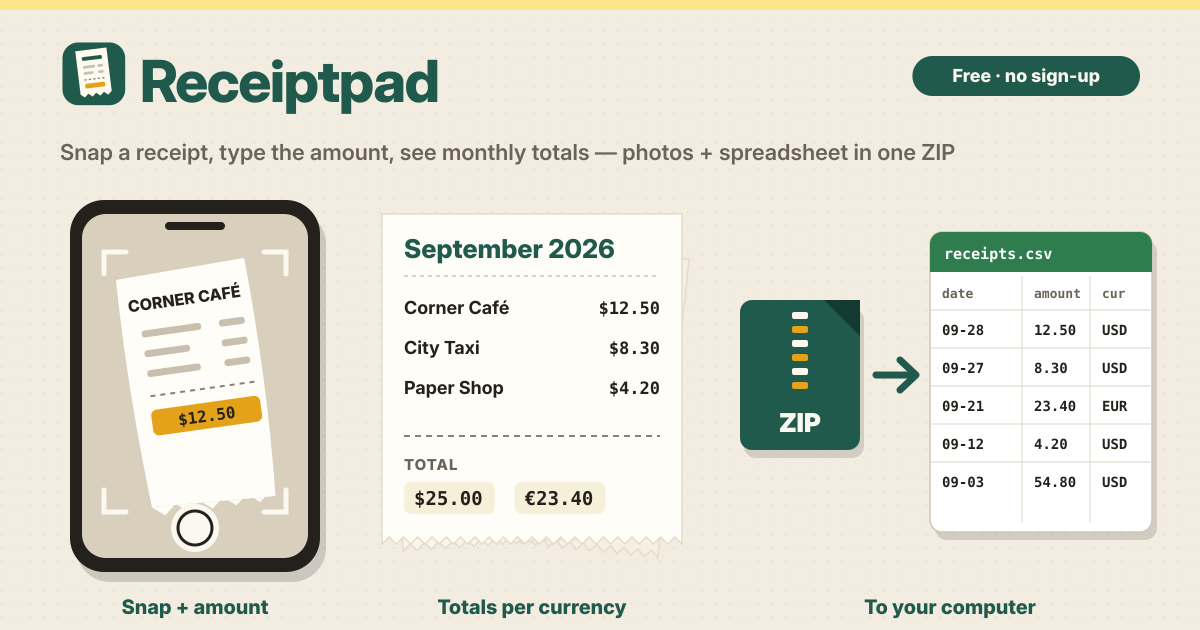
Receiptpad opens in a browser and needs no sign-up. A photo and a few fields, and your receipts line up by month; when you need them, the photos and a spreadsheet file go to your computer in one go. The interface is in Korean, English, Japanese and German, and your receipts are saved in this browser on this device only. There is no account, no sync and no ads.
1. Snap a receipt or pick a photo
- The camera button opens your phone camera. For photos you already took, or a PDF statement, use Choose file.
- A long receipt or a bill with several pages can hold up to 10 pages in one entry.
- On a computer you can also drag photos onto the page or paste a copied image.
2. Fill in a few fields and save
- The date starts as today. For an older receipt, just change the date.
- Type the amount as 12.50 or 12,50, both work. The currency starts from your language (KRW, USD, JPY or EUR) and after that remembers the one you used last.
- Recent shops and categories show up as chips, so one tap fills them in. The default categories are food, travel, office, bills and other, and you can add your own. The note is there if you want it.
- For a shop you visit often, it is one tap on the shop chip and one tap on Save.
3. Browse by month, search and filter
- Receipts are grouped by month with the newest month on top, and each month shows its total for each currency separately.
- Type a shop name, a note, a category or an amount into the search box to find a receipt right away. You can also filter by month and category.
- Tap a photo to open it full screen. Zoom in to read the small print, and swipe to move between pages.
4. Monthly totals per currency
Even when receipts from a trip are mixed in, totals are counted separately for each currency. If you paid in dollars and euros in the same month, you see a dollar total and a euro total side by side. Nothing is converted at an exchange rate, so the numbers match your receipts exactly.
5. Move everything to your computer
- In Move to your computer, choose This month or All and tap Download ZIP: one ZIP file (one packed file that holds several files) is saved. Inside are your receipt photos, receipts.csv, a file your spreadsheet can open (CSV), and a backup file you can bring back in later.
- Photo file names start with the date, so sorting the folder by name puts them in date order.
- To unpack the ZIP file on your computer, double-click it, or right-click and choose Extract all.
- In Google Sheets, go to File → Import → Upload and pick receipts.csv. In Excel, open receipts.csv directly, or use Data → From Text/CSV. The file is saved so letters don’t break in Excel or Google Sheets, so there is nothing to set.
- The spreadsheet file is saved so that Korean, Japanese and German letters are not garbled. If you only need the table without photos, you can export just the spreadsheet file.
6. Bring it back in
- Use Import and pick an exported ZIP file, or just the backup file inside it, to bring your receipts back here or on another device.
- Before anything changes you see a preview of what is new. Receipts that are already here are never duplicated, so importing the same file again adds nothing.
7. Storage and deleting everything
- Photos take up space, so the app shows how much storage your receipts use right now.
- Delete everything asks first and offers Export first so you can keep a ZIP file.
- After the first visit it opens without a connection, and Add to Home Screen in your browser menu keeps it like an app.
Where are my receipts stored?
In this browser on this device only. There is no server your receipts, photos or notes are uploaded to, no account and no sync between devices. To move them or use them on a computer, export a ZIP file.
What happens if I clear my browser data?
Clearing the site data or uninstalling the app deletes your receipts and photos too, and there is no way to bring them back. Export a ZIP file regularly and keep it on your computer.
Does it read the amount from the photo?
No. It does not read the text in your photos; you type the amount, shop and date yourself. The date and currency are filled in for you and recent shops and categories are one tap away, so it only takes a few taps.
Do I need to sign up? Does it do expense reports or accounting?
There is no sign-up and no account. There are also no expense reports, no approvals, no accounting and no bank link. It does one job: keep your receipt photos, group them by month and hand them over as a spreadsheet file.
Is it free? Where do I send feedback?
All of it is free. The number of receipts, photos and exports are not locked, and there are no ads on the tool. Send feedback with the Guide & Feedback button at the bottom right.