Remote hours are yours to count, and the company clock is the wrong tool for it
Once you leave the office, nobody counts where your day starts and ends but you. You open the laptop in the morning, step away at lunch, open it again in the evening, and when someone asks how many hours you worked today the honest answer is “about nine, I think”. Multiply that guess by a week and you no longer know whether you are five hours over your target or five under, and because you do not know, Friday afternoon never feels safe to close.
The attendance system your employer provides was not built to answer that question. It is a record for managers, and when it comes with screenshot capture or keyboard activity it feels like a cost to even leave running. Time-tracking services with team invites, approval flows, pricing tiers and a “Pro” lock are the same shape from the other side. A person working alone does not need a management tool; they need a small ledger for their own hours.
Trying to stand in with a Pomodoro or countdown timer does not last either. A timer answers “focus for 25 minutes”, not “how many hours did I work this week”. The moment you forget to start one or forget to stop one, the number stops meaning anything. What you need is a thing where you press check in once, break once, check out once, and the clock does the rest.
Freelancers and people paid by the hour have one more annoyance. You did three hours over your target this week, and on Monday those three hours are gone. Most apps reset the counter when the week turns and the surplus lands nowhere. A week under target is forgotten just as quietly. Overtime should carry over like a bank balance: over adds, under subtracts, and next week you get to close that much earlier.
What Hourpad does
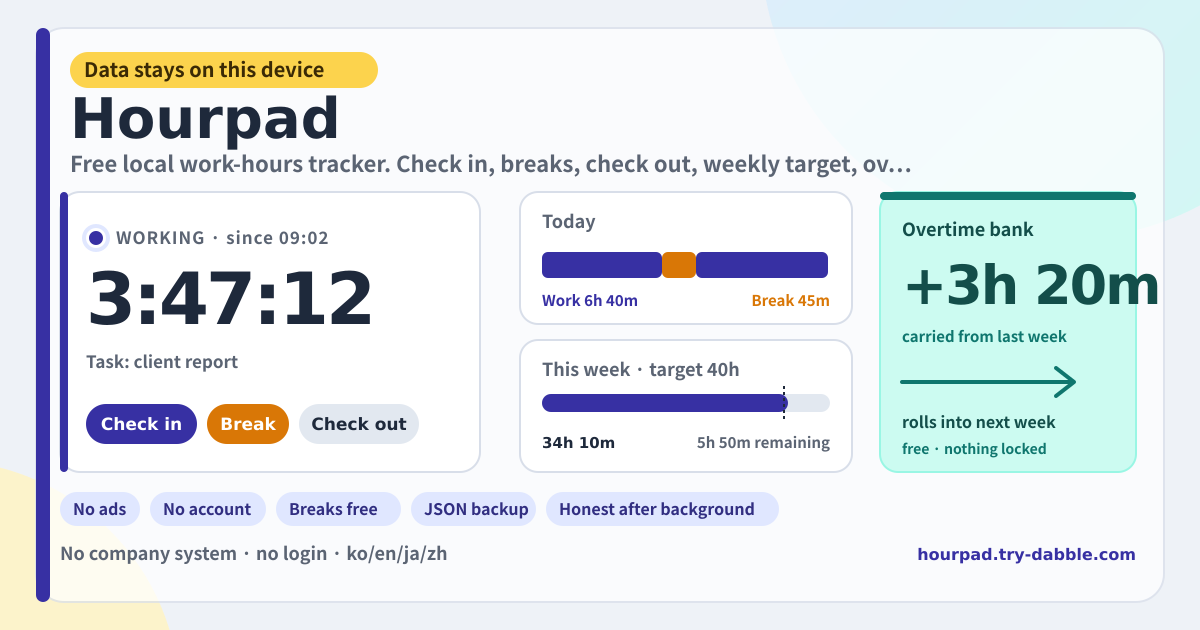
Hourpad is that small ledger. Three big buttons on the home screen are the whole interface. Check in opens a work session and the clock runs. Break closes the work and opens a break session, timed separately so it never leaks into work. Resume work brings you back, and Check out ends the day. A session can carry a task label such as “client report”, or stay blank.
The Today card shows work and break totals separately. The This week card compares work hours with the weekly target and shows what is remaining or how far over you are; the target defaults to 40 hours and can be changed to 37.5, 32 or whatever you have agreed. Weeks start on Monday.
The overtime bank is always visible on the home screen. There is one rule. When a week that has work logged ends, that week's work minus the target is added to the bank. Over target grows it, under target shrinks it, and it can go negative. A week with nothing logged is left alone, so a holiday week never becomes −40 hours. Each week settles once, and settled weeks appear in the week history marked “Settled”. The balance is a single number, so to bring in overtime carried from elsewhere or to set it to what you agreed with a client, press “Edit bank”.
The Day tab lets you pick a date and lists that day's work and break sessions with start, end, duration and label; a wrong row can be deleted. On a day you forgot to check in, “Add entry” takes a start and an end time. The Weeks tab shows past weeks with work and break totals, the target at the time and what moved into the bank. The Backup tab exports sessions, the open session, target and bank, and settled weeks as one JSON file and reads them back.
Time is always computed from the real clock. The moment you check in is stored, and the elapsed figure on screen is always “now minus that moment”. If the tab goes to the background or the screen locks and the browser stops the per-second refresh, the figure is re-read from the clock the instant you come back. It will never be the app that says twelve minutes passed while you were away for an hour.
Banner, clock, today, this week, bank, tabs
- Amber banner: data stays on this device, no login, no ads, breaks and the overtime bank are free. It is at the top every time you open the app.
- Clock card: the state (checked out, working, on break), since when, elapsed time running on the real clock, the task field, and only the buttons that make sense for the state — Check in / Break and Check out / Resume work and Check out.
- Today: work total, break total, number of sessions.
- This week: work, break, target, remaining or over, a progress bar, “Edit target”.
- Overtime bank: the balance, what it would be if this week ended now, the rule in one line, “Edit bank”.
- Day tab: date picker, that day's work and break totals, one row per session (kind, label, start–end, duration, delete), “Add entry”.
- Weeks tab: per week, work, break, target, what moved into the bank, and a Settled or In progress mark.
- Backup tab: Export JSON, Import JSON, Delete everything.
- Promise chips: No ads mid-use · No account · Breaks free · Overtime bank free · JSON backup · Honest after background · Free forever · Data this device only · ko/en/ja/de.
- Footer: Privacy, Terms, Guide, try-dabble.com. The “Guide & Feedback” button at the bottom right opens this guide page in a new tab.
Where your data stays
Your check-ins and check-outs, task labels, the open session, weekly target, bank balance and settled weeks live only in this browser on this device. Nothing is sent to a server, nothing is tied to an account, and there is no place where an employer or a team could look. The only cookie remembers your language across try-dabble apps. Clearing site data or changing devices removes the history, so download a JSON from the Backup tab if you want to keep it.
Do breaks count as work?
No. Pressing Break closes the work session and opens a separate break session. Only work sessions go into today's and this week's work totals; breaks are shown beside them. The overtime bank looks at work time only. If you want a pause to count as work, simply do not press Break.
When exactly does the overtime bank change, and how?
When a week has ended (weeks start on Monday) and you open the app again, every past week that has work logged and is not yet settled adds its work minus target to the bank. 43 hours against a 40-hour target is +3 hours; 36 hours is −4. Each week settles once, so opening the app several times never adds it twice. The current week is not touched until it is over; instead the “Projected at week end” line shows what the bank would be if it ended now. If the balance is not what you want, “Edit bank” accepts any number.
Is the time still right if I close the tab or lock the screen?
Yes. The check-in moment is stored, and elapsed time is always the difference between that moment and now. The app does not count seconds. When the browser slows or stops refreshing a background tab, the figure is recomputed from the clock the moment you return and the moment the page becomes visible again. If you close the tab entirely and open it the next day, the session is still open; if you forgot to check out, delete that row on the Day tab and fix it with Add entry.
Can I import records from another app?
JSON that Hourpad exported is read as-is. JSON from other apps is mapped when the session array is called something like sessions, entries, logs or shifts and each row has a start and an end under common names such as startedAt/start/clockIn and endedAt/end/clockOut. Rows without a kind are treated as work; kind or type set to break becomes a break. Rows with only a duration in minutes are read too. Unknown keys are ignored, and because importing replaces the current records with the file, a confirmation appears first.
Is it free? Any ads, account or locked features?
Everything is free. No feature sits behind a payment, breaks and the overtime bank included, and there is no “upgrade to Pro”. No ads, no account, no login, and no screen for creating a company or a team. The tool page loads no ad script; the domain serves an ads.txt only so the publisher record matches the rest of try-dabble. If you have thoughts, use “Send feedback” on this page.