It started with “App to log work hours and see next paycheck date and amount?” on Reddit
In October 2026 someone asked on r/ProductivityApps: “App to log work hours and see next paycheck date and amount?” and added: “This has been so hard to find. Any recommendations are appreciated.” The wish is plain: write down the hours you work and always know when the next paycheck comes and about how much it will be.
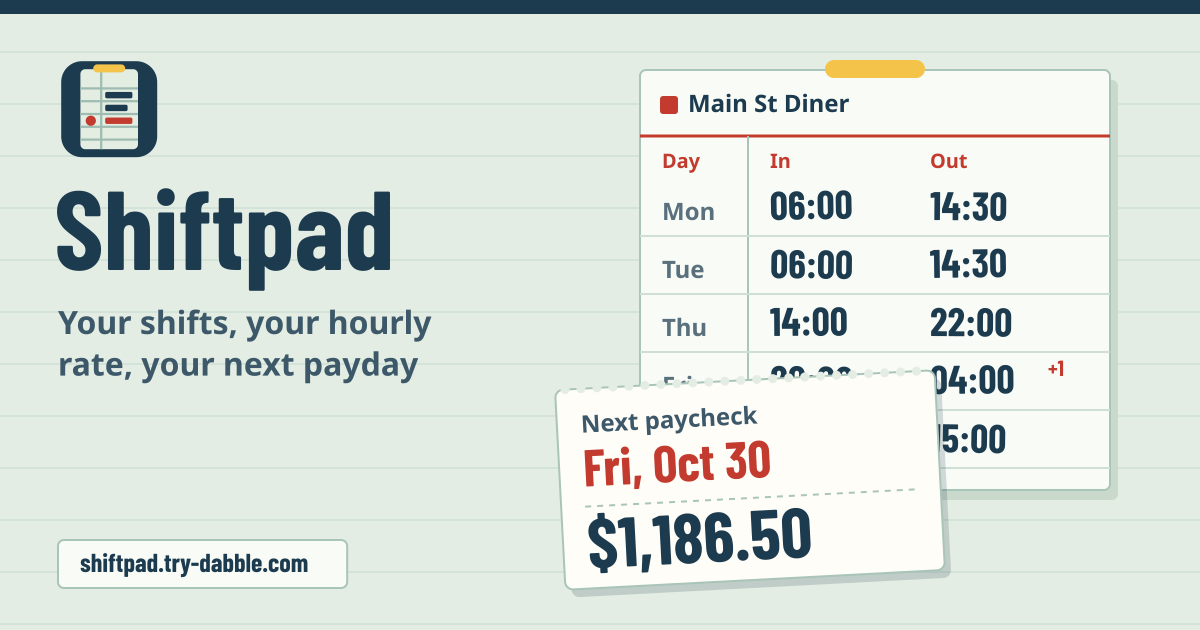
Shiftpad answers exactly that. Press “Clock in” when a shift starts and “Clock out” when it ends, or fill shifts in afterwards, and the “Next paycheck” card at the top shows the payday and a projected amount from each job’s rate and pay schedule. It opens in the browser, has no account and no ads in the tool, and the log stays on your device.
What you find elsewhere
Hours calculators are everywhere. What was hard to find was a web tool that opens with no account, lays shifts over real pay periods to show the next payday and amount, and speaks Korean, English, Japanese and German.
- CalculatorAI Shift & Hours Tracker: payday forecast, differentials and a payslip check, but you have to sign up to keep your own shifts, and there is no Korean.
- TimeWorked and PunchCalc: no account, local, hours, overtime and pay, but English only and no next-payday projection.
- Korean hourly-pay calculators (win-j, Money Salary): a calendar-month total and a weekly-holiday-pay estimate, but no pay periods or paydays; another one (Albacheck) needs a login to save.
- WageFlow (an iOS app): pay periods, a paycheck check, PDF and CSV export, but it is an app you install.
What Shiftpad does
At the top there is always the “Next paycheck” card, under it the big “Clock in” button, and under that four tabs: “Shifts” (the week as a time card, plus a month calendar), “Pay periods” (past periods and the payslip check), “Jobs” (rates and pay schedules) and “Backup” (CSV and JSON files, settings).
The amber band at the top says it plainly: jobs, shifts and pay settings live only in this browser on this device, so save a backup file regularly. And: Estimate only — not tax, payroll or legal advice; your employer’s payslip is authoritative.
Getting started: one job and how it pays
Open https://shiftpad.try-dabble.com and pick your language at the top. Nothing to install, nothing to sign up for. Tap “Add your first job” and give it a name, a colour, a currency (KRW, USD, JPY, EUR and more) and the hourly rate. Amounts show in that currency, written the way your page language writes money.
There are four pay schedules. “Weekly” and “Every two weeks” take the day a pay period starts and how many days after the period ends you are paid; “Twice a month (1st–15th, 16th–end)” takes the payday for each half, in the same or the following month; “Monthly” takes the day the period ends and the payday, in the same or the following month, such as “paid on the 10th for last month”. “Last day of the month” follows the month, February included.
Under “Payday on a weekend or holiday” choose “Keep the date”, “Business day before” or “Business day after”. You add your public holidays yourself in the settings on the “Backup” tab (there is no built-in holiday calendar). Before saving, “Next paydays” lists the next three, so you can check them against a payslip.
The Guide & Feedback button in the app opens this guide in a new tab.
One thumb on a break: clock in, break, clock out
With more than one job, pick it above the button, then press “Clock in”. On the clock the card turns dark and shows the running time in large figures; “Start break” and “End break” add unpaid break time, and “Clock out” saves the shift. The clock-in moment is remembered, so reloading the page or closing and reopening the tab keeps the clock running.
To be honest about it: nothing runs in the background, so nothing reminds you if you forget to clock out. If you do, clock out and then fix the end time of that shift on the “Shifts” tab. A clock left running for more than 24 hours is saved as 23 h 59 min with a note to check the times.
Past shifts, shifts past midnight, and moving a date
“Add a shift you already worked” or “Add shift” takes the date (the day it started), start, end, unpaid break in minutes and a note. An end before the start means the next day, and the sheet says “Ends the next day”. A 22:00–06:00 shift becomes 2 hours on the first day and 6 on the second, with the break shared in proportion, so daily overtime, night premiums and a shift across a month end all count by the time actually worked.
Tap a shift to edit it. Changing its date moves that shift to the new day (“Shift moved to …”); it is never deleted on the way. A shift only goes when you press “Delete shift”, and even then “Undo” shows for a moment.
The week on the “Shifts” tab is a time card: one row per day with In, Out, Break and Paid; a shift ending the next day gets a red +1 and a future one is marked “Planned”. The month calendar below puts a dot in the job’s colour on every day with a shift; tap a day to open its week.
Rate changes count from their date: past shifts keep theirs
Open a job on the “Jobs” tab and use “Add a rate change” with a date and the new rate. Every shift is paid at the rate in effect on its own date, so a raise never recalculates the shifts before it.
The Next paycheck card
The card shows the nearest payday in red with “Today”, “Tomorrow” or “In 3 days” beside it, and the “Projected gross” from the shifts logged in that pay period. With “paid on the 10th for last month”, the next paycheck on 5 October is September’s.
Shifts dated in the future are planned: they never mix into the amount but show apart as “Planned shifts add …” (you can hide them in the settings). With several jobs, “All jobs, next paychecks” lists each job’s payday and amount and a total per currency. With a deduction set, “Estimated take-home” shows with its note right beside it.
Extra pay rules: your own settings, not the law
A job’s “Extra pay rules (optional)” are all off until you turn them on. “Daily overtime” (after so many hours a day) and “Weekly overtime” (after so many hours a week) pay the hours past the threshold at the rate × your multiplier, never counting an hour as overtime twice. “Night premium” takes a time window, such as 22:00–06:00, and a percentage added on top of the rate; “Weekend premium” adds a percentage for Saturday and Sunday hours.
In Korean the “Korean weekly holiday pay (estimate)” option shows as well; in other languages you can switch it on in the settings on the “Backup” tab. A week with 15 hours or more adds (hours ÷ 40, at most 1) × 8 hours × the rate, a simple estimate that ignores attendance and contract rules. All of these are values you copy from your contract or employer; Shiftpad does not tell you what any country’s law requires.
Estimated take-home and the payslip check
Under “Deduction for the take-home estimate” pick “Percent of gross” or “Fixed amount per paycheck”, and “Estimated take-home” appears. It only subtracts the one figure you chose; it does not work out tax or social insurance. Estimate only — not tax, payroll or legal advice; your employer’s payslip is authoritative.
The “Pay periods” tab lists periods newest first: dates, payday (and the original date if a weekend moved it), hours and amount. Open one for the lines: Regular, Overtime, Night premium, Weekend premium, the weekly-holiday estimate and Gross (estimate). Enter “Gross on your payslip” (and the net if you like) under “Payslip check”, and it tells you how much more or less the payslip shows. A gap usually means a missing shift, a different break, a rate change or a premium your employer counts another way.
Export, backup and restore
On the “Backup” tab, “All shifts (.csv)” and “Pay periods (.csv)” are tables for Excel or any spreadsheet, and each period has “Shifts of this period (.csv)”. “Save backup (.json)” puts every job, rate, shift, payslip figure and setting into one file.
“Restore from a file…” checks the file first: a file that is not a Shiftpad backup or is broken is refused, and incomplete entries are skipped and counted. “Merge with what is here” updates matching entries and adds new ones, and reading the same file twice adds no duplicates; “Replace everything here” swaps in the file’s contents.
Privacy: your shifts and pay never leave the device
Jobs, rates, shifts, payslip figures and settings are stored only in this browser on this device and are never uploaded or sent anywhere. There is no account and no login, and nothing connects to a bank or an employer’s system. After the first visit it opens without a connection. Clearing the browser’s data clears the log too, so keep a backup file.
What it does not do
It does not work out tax, social insurance or year-end adjustments, and it does not tell you what any country’s statutory premiums are. Every rule is a value you set, and every result is an estimate.
It does not sync between devices; to move, save a backup file and restore it on the other device. There are no notifications while the page is closed.
No tips, commission or per-service entries: for that, Tippad is made for hairdressers and barbers. A household budget is Budgetpad, and counting internship hours against a requirement is Placepad.
Is the take-home figure what I will actually get?
No. It is the projected gross minus the percentage or amount you chose. Estimate only — not tax, payroll or legal advice; your employer’s payslip is authoritative. When the payslip arrives, enter it under “Payslip check” to see the difference.
How does it count a shift past midnight or across a pay period?
By the time actually worked. A shift from 20:00 on 31 October to 04:00 counts 4 hours in October and 4 in November, with the break shared in proportion. The rate is the one in effect on the day the shift started. The weekend premium, though, follows the day actually worked (each part of an overnight shift counts on its own day), while the base hourly rate always comes from the shift’s start day.
Does it work offline?
Yes. It works offline after the first visit: the browser keeps a copy of the app on the device, so it opens without a connection. Clocking, the calculations, CSV and backups all work offline.
Is there an account or a paid tier?
No. Every feature is free, there is no account, and there is no cap on jobs or shifts. There are no ads in the tool.
How do I move my log to a new phone?
On the old device press “Save backup (.json)” on the “Backup” tab, move the file to the new one and read it with “Restore from a file…”. A running clock is not part of a backup, so clock out first.