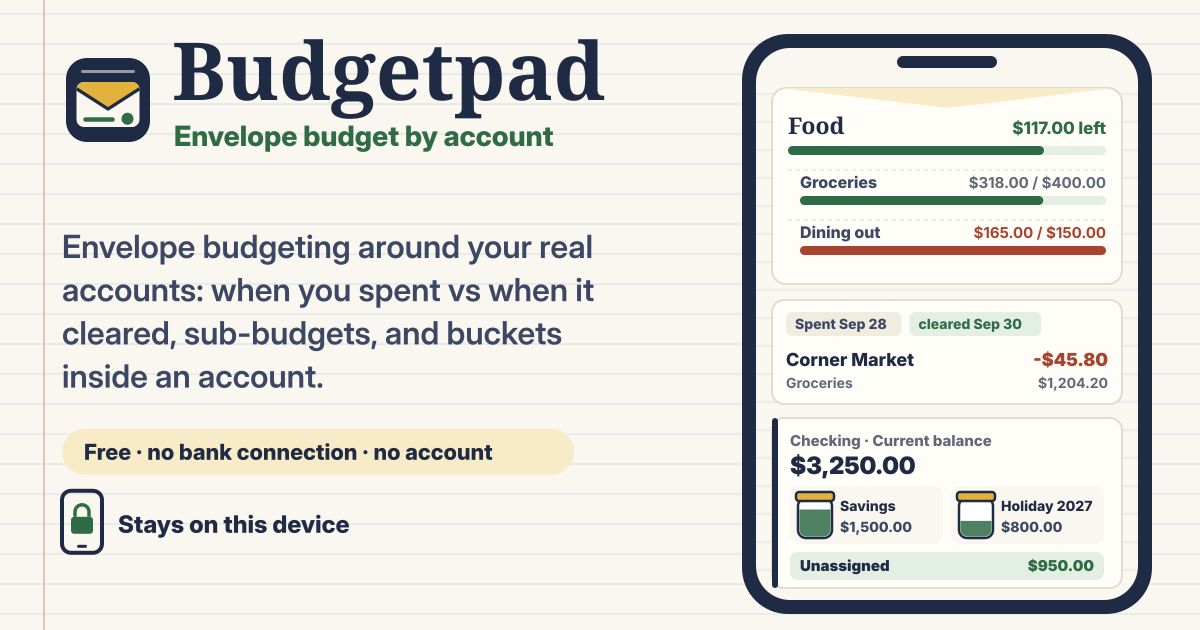
A budget you keep by hand, around your real accounts
A card payment leaves the account days after you paid, a transfer arrives a day later, and the money in your savings account is already meant for three different things. A plain list of expenses can’t tell you what is really left in each account, and a monthly budget alone can’t tell you what has already left the account.
Budgetpad is an envelope budget you keep by hand around your real accounts. You type in every entry yourself: there is no bank connection, and nothing is imported or sorted automatically. In return you see exactly what you entered: a ledger per account with a running balance, what has cleared and what is still pending, monthly envelopes per category, and buckets inside an account. It is for anyone who likes to write their money down themselves. It is free, with no sign-up, no ads and no subscription, and everything stays in this browser on this device. It speaks Korean, English, Japanese and German.
1. Accounts: add each account with its currency and opening balance
- Open Accounts and tap Add account. Pick a type (checking, savings, cash, card or other), give it a name and choose its currency. Every account can have a different currency.
- For the opening balance, enter what the account holds on the day you start. For a credit card that already owes something, the opening balance can be negative.
- Every account has its own ledger, and each row shows the running balance up to that entry, so you can compare it line by line with your bank statement.
2. Spending and income: the day you spent it and the day it cleared
- In Add, type the amount on the number keypad, pick the account and a category, and add a payee if you like. Choose whether it is spending or income.
- Every entry has two dates. Spent on is the day you paid or got paid. Cleared on is the day the money actually left or arrived in the account. Leave Cleared on empty while it is still pending.
- Each account shows three numbers. Cleared balance is the opening balance plus everything cleared on or before today. Pending is the rest: entries not cleared yet, or with a cleared date in the future. Current balance is the cleared balance plus pending.
- When an entry shows up on your bank statement, tap Mark cleared today. The Pending filter on each account shows only what has not cleared yet, so you can tick them off one by one.
3. Budget: monthly envelopes and sub-budgets
- Open Budget and use Set budget to give each category, such as Groceries or Rent, an amount for the month.
- Copy last month’s budgets fills this month with last month’s amounts, so an ordinary month takes one tap.
- A category can have one level of sub-categories, each with its own sub-budget, for example Food with Groceries and Eating out under it. The parent shows its own budget plus all its subs added up.
- Spending counts in the month you spent it (Spent on), not the month it cleared. A card payment on 30 June belongs to June’s envelopes even if it leaves the account in July.
4. Carry over: what happens to leftover money and overspending
Every category has a Carry over switch, and it is on by default.
- Carry over ON: whatever is left at the end of the month, leftover money or overspending, carries into next month. Money you didn’t spend is added to next month, and overspending is paid back from next month.
- Carry over OFF: every month starts fresh from its budget. Overspending shows in red for that month only and is not carried.
- Example: Groceries has a budget of 400 and you spend 430. With Carry over on, next month starts at 370 (400 minus the 30 you overspent). With it off, next month starts at 400 again, and only this month stays red at 30 over.
5. Buckets inside an account, and Unassigned
- Buckets are named portions of the money in one account, such as “Savings” or “Holiday 2027”. Open an account and tap Add bucket to make one.
- Unassigned is the account’s current balance minus all its buckets: the money not set aside for anything yet.
- If the buckets add up to more than the money in the account, an amber warning says so and Unassigned goes negative. Nothing is blocked; you fix it when it suits you.
- Buckets are not envelopes: putting money in a bucket is not spending and doesn’t touch your monthly budgets.
6. Transfers and more than one currency
- A Transfer moves money between two of your own accounts, for example from checking to savings, or to pay off the card. It is never income or spending and never touches your envelopes.
- Each account keeps its own currency. Budgetpad never converts between currencies and never makes up an exchange rate: totals are shown per currency, on separate lines.
- A transfer between two currencies asks for both amounts, what was sent and what was received, so both ledgers match what your bank actually did.
7. Fast entry, edits and search
- Add remembers the last account you used, the category picker shows sub-categories under their parent, and the payee field suggests names from your history.
- Tap an entry to edit it. If you delete one by mistake, Undo brings it back.
- Search finds entries by payee, memo or category.
8. CSV export and the backup file
- Export CSV in Settings saves your transactions as a CSV file, which opens in spreadsheet apps.
- Download backup makes a backup file with everything (accounts, entries, budgets, buckets and settings) on this device and saves it where you choose.
- Restore from backup merges the file into what is here. It never wipes and never duplicates: a record that is already here is skipped, a changed record keeps the more recently edited version, and records only on this device are kept. Restoring the same file twice changes nothing.
- Before anything changes, a preview shows how many records are new, already here, newer in the file and older in the file.
- To start over, Delete everything in Settings removes it all from this device. Download a backup first if you might want it back.
9. It stays on this device
- Accounts, entries, budgets and buckets are stored only in this browser on this device, and nothing is uploaded. No bank connection, no sign-up, no account, no ads and no subscription.
- On iPhone and iPad, put Budgetpad on your Home Screen with Add to Home Screen in Safari, because Safari may clear a website’s data after 7 days without a visit. Download a backup regularly, and always before clearing your browser data or changing phones.
- If something is missing, tell us with the Guide & Feedback button at the bottom right.
How it differs from Paypad and Weekpad
Paypad splits irregular income into envelopes the moment it lands; it has no accounts, no ledger and no second date. Weekpad sets weekly spending caps that reset every week. Budgetpad is an account ledger: running balances, cleared vs pending, monthly envelopes with sub-budgets, and buckets inside your accounts.
Can it connect to my bank?
No, and that is on purpose. Budgetpad has no bank connection: you type every entry yourself, and nothing leaves this device. Your account names, balances and spending are never sent to us or anyone else.
What’s the difference between cleared and pending?
Cleared means the money has actually left or arrived in the account: the entry’s Cleared on date is today or earlier. Pending means it hasn’t yet: Cleared on is empty or in the future, like a card payment that takes a few days. Cleared balance counts only cleared entries, Pending adds up the rest, and Current balance is both together.
What happens when I overspend?
It depends on that category’s Carry over switch, which is on by default. On: just as leftover money would be added to next month, the overspending carries into next month and is paid back from it. Off: next month starts fresh from its budget, and the overspending shows in red for that month only.
Can I use two currencies?
Yes. Each account has its own currency. Budgetpad never converts between currencies and never makes up an exchange rate: totals are shown per currency on separate lines, and a transfer between two currencies asks for the amount sent and the amount received.
How do I move to a new phone?
Tap Download backup in Settings, move the backup file to the new phone, and choose Restore from backup in Budgetpad there. Restoring merges: nothing on the new phone is wiped, nothing is duplicated, and restoring the same file twice changes nothing.