What this app does
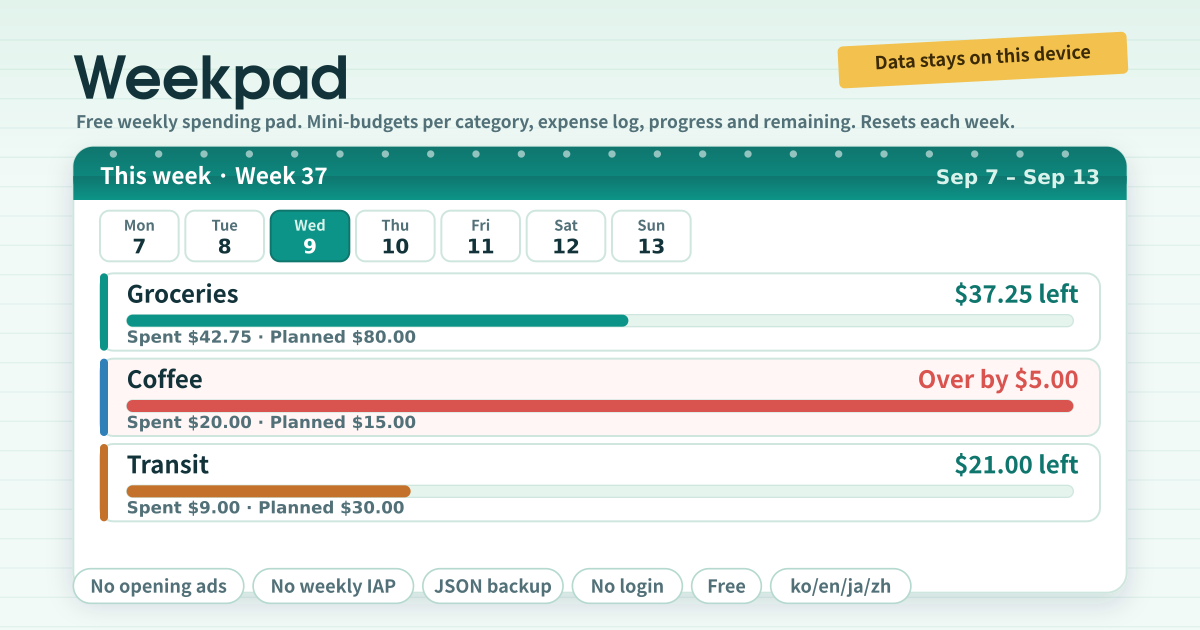
Weekpad is a spending pad that works in weeks, not months. Set a small budget per category, like “Groceries 80, Coffee 15 this week”, and type in each amount as you spend it. Every card shows a progress bar and the remaining figure, and turns coral with “Over by” once you pass the plan.
When Monday (or Sunday, your choice) comes, a fresh week starts on its own and the counters return to zero. The arrows take you back through past weeks any time. A category with “Every week” on carries the same budget into next week, so there is nothing to re-enter. No bank link, no account, no ads, no paid tier.
What is on the screen
- The amber strip at the top: a note that your data stays on this device.
- The week card: arrows on both sides move a week back or forward, the middle shows the week number and date range, and seven day cells sit underneath. Today is filled teal and any day with an expense gets a dot.
- The totals row: planned, spent and remaining for the whole week, with one overall bar.
- Category cards: the name, an “Every week” or “This week only” badge, the progress bar, spent and planned, and the remaining figure. The pencil button edits the name, budget, recurring and archived switches, or deletes it.
- Quick expense: amount, category, an optional note, the date, and the “Add expense” button. The date picker stays inside the week on screen.
- The expense list for the week: tap a row to edit or delete it.
- Settings and backup: the currency symbol ($, ₩, ¥, €…), the week start day, text size, and Export JSON, Import JSON and Export CSV.
How to use it
Tap “Add category”, type a name and this week’s amount, and leave “Every week” on. From then on, whenever you spend, type the amount in Quick expense, pick the category and tap “Add expense”. The card’s bar and remaining figure change right away.
When the week ends there is nothing to do. The next time you open the pad the new week is showing, and recurring categories start again at zero with the same budget. Curious about last week? Tap the left arrow; “Back to this week” brings you home. Add it to your home screen and it opens like an app.
How it avoids the usual failures
- Opening ads: none. The tool screen carries no ads at all.
- Weekly in-app purchase: none. It is free with nothing locked behind a paywall.
- Data wiped on reinstall: export JSON from the Backup card and “Import JSON” brings everything back on a new phone or after a reinstall. CSV is the spreadsheet copy.
- Login-only save: there is no login. Data stays on this device and is never sent to a server.
FAQ
Common questions are about recurring versus one-week categories, where data lives, and what the currency setting does.
What happens if I turn “Every week” off?
That category’s budget applies only to the week it was created in. In other weeks the card reads “No budget this week” and just logs the spending. Good for a gift or a trip that happens once. Turn it back on and the budget carries into every week again.
Are my amounts uploaded anywhere?
No. Categories, expenses and settings all stay on this device. There is no account, no sync and no bank link. Export JSON before you switch devices or uninstall. The “Delete all data” button wipes everything if you want a clean start.
Does changing the currency convert my amounts?
No. The currency setting only changes the symbol in front of the numbers ($, ₩, ¥, €…) and the decimal places. There is no exchange rate and no network request; the figures you typed stay exactly as they are.