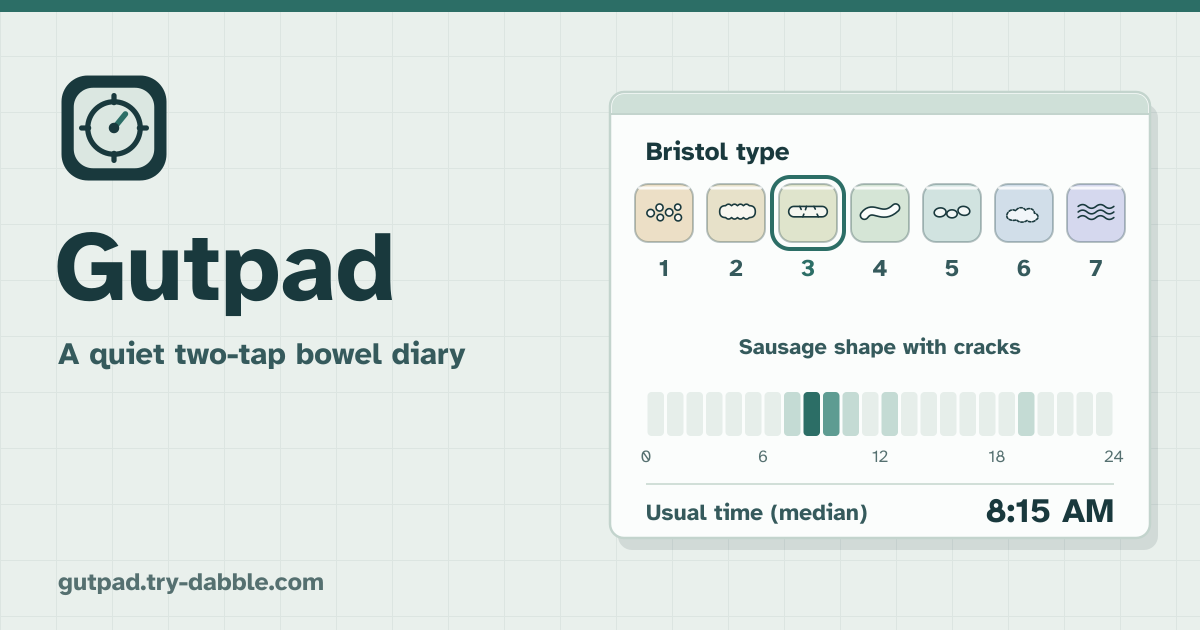
It started with “Is there an app like Flo but to track your poop cycle?”
Someone asked on X: “Is there an app like Flo but to track your poop cycle. I’ve recently changed from once midday after coffee to once or twice at night and have no idea why.” A change like that only becomes visible when the when and the how often are written down.
An App Store review of PCal Poop Tracker names two gaps: “I made a few labels to quickly take notes and these don’t come through in the export… would love to see some graphs over time (I.e. Bristol number over time)”
Gutpad answers both. One tap on the matching shape saves it with the time, and your usual time, how often and any change show up as charts and a plain hint. Every one of your tags becomes its own CSV column, and the Bristol type is drawn over time with your medicine and supplement tags on the same chart. It opens in the browser, has no account, no subscription and no ads in the tool, and your entries stay on your device.
What you find elsewhere
Rechecked on 24 October 2026. Every no-account web bowel diary we found is in English only; there is no web tool in Korean, Japanese or German.
- Cadence bowel diary (cadencegut.com): Bristol type, symptoms, meals, CSV. English only.
- BristolStoolChart.com tracker: type and symptoms, CSV. English (UK) only.
- Kakamit (kakamit.com): stool and gas log, stored locally, import and export. English only.
- Refit (userefit.com): a broad health journal including bowel movements, 7/30/90-day insights. English only.
- Store apps (PCal, CareClinic, PooIQ and others) need an install, and their reviews complain about pushed subscriptions, lost entries and labels missing from the export.
Two taps: the time and the Bristol type
The time at the top of Log is now. For another time, tap “Change time” and pick the date and time; a time in the future is not saved, and “Use the current time” goes back to now. Then tap the one of the seven shapes that matches: it is saved at once. There is no separate Save button to forget, and the “Just saved” card and the message below show what was saved. Tapped the wrong one? Tap “Undo” in the message. Two entries in the same minute get a mark, so a double tap is easy to spot.
On a day with none, one tap on “No movement today” marks it and another tap removes it. For an earlier day, pick it in the History calendar and tap “Mark no movement on this day”. Marked days are counted separately under “days with none” in Rhythm, which is what constipation tracking needs.
The seven types of the Bristol stool scale
The Bristol stool scale sorts stool shapes into seven types, from type 1 (hardest) to type 7 (loosest), so that you and a doctor describe the same thing with the same words. The drawings in Gutpad are simple line drawings of our own, and the tile colours only run from firmer to looser; they do not mean good or bad.
- Type 1: Separate hard lumps
- Type 2: Lumpy, sausage-shaped
- Type 3: Sausage shape with cracks
- Type 4: Smooth, soft sausage or snake
- Type 5: Soft blobs with clear edges
- Type 6: Mushy, fluffy pieces
- Type 7: Watery, no solid pieces
Details and tags
Tap “Add details” or any entry in a list to change the date and time, the type, the colour (from brown to “Black or tar-like”, “Red” and “Pale, clay or grey”), the amount, urgency, straining and pain (None, Mild, Moderate, Strong), “Blood seen”, “Mucus seen”, tags and a long note. All of it is optional, and every tap is saved at once (“Saved” flashes). Close with “Done”; after “Delete entry”, “Undo” brings it back.
Tags start with Coffee, Big meal, Medicine, Laxative, Fibre supplement, Stress, Period, Travel and Exercise; under More you can rename, delete or add your own. An empty name, a name that already exists (in any case) or one longer than 40 characters is refused. Deleting a tag keeps every old entry that carries it readable, and adding the same name again brings it back. Tags ticked as “Medicine / supplement” are drawn on the chart.
Rhythm: how often, which types, the chart and the time of day
In Rhythm, pick 7 days, 30 days or 90 days to see the average a day, the days with none (and how many you marked) and the number of entries. Days before your first record are not counted, so a fresh start does not drag the average down; with no entries you see “–” and “Not enough data yet”, never a strange number. Below come the count and share of each type, the “Bristol type over time” chart (a dot per entry, a line through the daily average, a triangle on top for a medicine or supplement tag, a square at the bottom for a no-movement day), a weekday × hour heatmap, your usual time (the median) and the counts for night, morning, afternoon and evening.
Times are the clock time where you were. When daylight saving time changes or you travel to another time zone, an 8 am entry stays in the 8 am column. The usual time is worked out on the 24-hour circle, so the median of 23:30 and 00:30 is midnight, not noon.
The rhythm check: what it compares, and when
The rhythm check compares the last 7 days (today included) with the 4 weeks (28 days) before them. It only gives a result when there are at least 4 entries in the last 7 days, at least 10 in the 4 weeks before, and at least 14 of those 28 days come after your first record; until then it says “Not enough data for a comparison yet” with the counts so far. When the usual time (the median) moves by 2 hours or more, it says so plainly, like “Your usual time shifted later by about 3 h (12:00 → 15:10)”; when the number a day changes by 1.5 times or more and by at least 0.5 a day, it says “More often” or “Less often than in the 4 weeks before”.
This compares your own records and nothing else. It is not a diagnosis: it does not judge what is normal and does not guess at causes.
A printed summary for the doctor (PDF)
At the bottom of Rhythm, under “Summary for the doctor”, pick the start and end dates and tap “Print summary / save as PDF”. In the print dialog choose a printer or “Save as PDF”. The summary has the date range, the number of entries, the average a day, days with none, the usual time and the time of day, a Bristol distribution table, the chart over time, tag counts, entries flagged for blood or a black or red colour, and the note that this is not medical advice. One printed page before an appointment beats remembering on the spot.
CSV, backups and the backup reminder
Your entries are only in this browser on this device. Clearing the browser or changing phones loses them, so save a file now and then with “Save backup (.json)” under More. After 20 new entries, or 14 days with unsaved changes, a “Time for a backup” card appears; “Later” quiets it for 3 days. “Restore from a backup…” can merge with what is here or replace it; if a single entry in the file is invalid, nothing is changed and the message says which one.
“Export CSV” writes one row per entry with every field, plus a “tag: name” column for every tag, so your own labels come through. It opens in Excel with Korean and Japanese intact, and a note that starts with = or + is kept as text, never run as a formula. “Import CSV…” of the same file adds nothing twice (rows are matched by id), and a single row with a wrong date, time or type rejects the whole file with that row number, so nothing is half imported. The file must be UTF-8: in Excel, save as “CSV UTF-8”.
If your saved record ever becomes unreadable, Gutpad keeps it exactly as it is and shows a recovery panel instead of wiping it: download it, restore a backup file, or start fresh after a confirmation.
A discreet title
Turn on “Discreet title” under More and the browser tab and the name at the top read “Daily log”, and the log screen uses short neutral words such as “Very hard”, “Smooth” and “Watery”. Turn it on before adding Gutpad to your home screen and the icon is named “Daily log” too.
Not medical advice, and when to see a doctor
Gutpad keeps records only. It is not medical advice: it does not diagnose, does not say what is normal for you and gives no treatment advice. This note is shown on first use, under “About these records” in More, at the foot of every screen and on the printed summary.
Blood in the stool, black or tar-like stools, a change in rhythm that lasts for weeks, weight loss you can’t explain, severe pain or a fever are reasons to see a doctor soon. When you tick “Blood seen” or choose a black or red colour, the same note appears calmly under the entry. It is not the app judging anything; it is a reminder that comes with what you recorded.
How it differs from Flarepad
Flarepad logs flares, the episodes when symptoms get worse, with a 0–10 intensity and tags for what was going on. Gutpad logs an everyday bodily rhythm: when, how often and which shape, and whether that rhythm has changed. Some people use both. To log the fibre and protein you eat, pair it with Fiberpad.
What it does not do
No diagnosis, no normal-or-abnormal verdicts, no treatment advice. It takes no photos and sends no reminders, and there is no account and no sync, so you move a backup file to use it on another device. There is no subscription and nothing to pay for.
Is this medical advice?
No. Gutpad keeps records only and does not diagnose or judge what is normal. If you notice blood, black stools, a change that lasts for weeks, unexplained weight loss, severe pain or a fever, talk to a doctor.
Does it work offline?
Yes. It works offline after the first visit, and your entries stay on this device. Add it to your home screen to open it like an app.
How do I move my diary to a new phone?
On the old device tap “Save backup (.json)” under More, move the file to the new one and tap “Restore from a backup…” there.
Why does the rhythm check say there is not enough data?
It needs at least 4 entries in the last 7 days and 10 in the 4 weeks before. With fewer, chance differences could look like a change, so it does not compare.
Can I hide what the app is?
Yes. Turn on “Discreet title” under More: the tab and the home-screen name become “Daily log”, and the log screen keeps to short neutral words.
Guide & Feedback
The Guide & Feedback button in the tool opens this guide in a new tab.