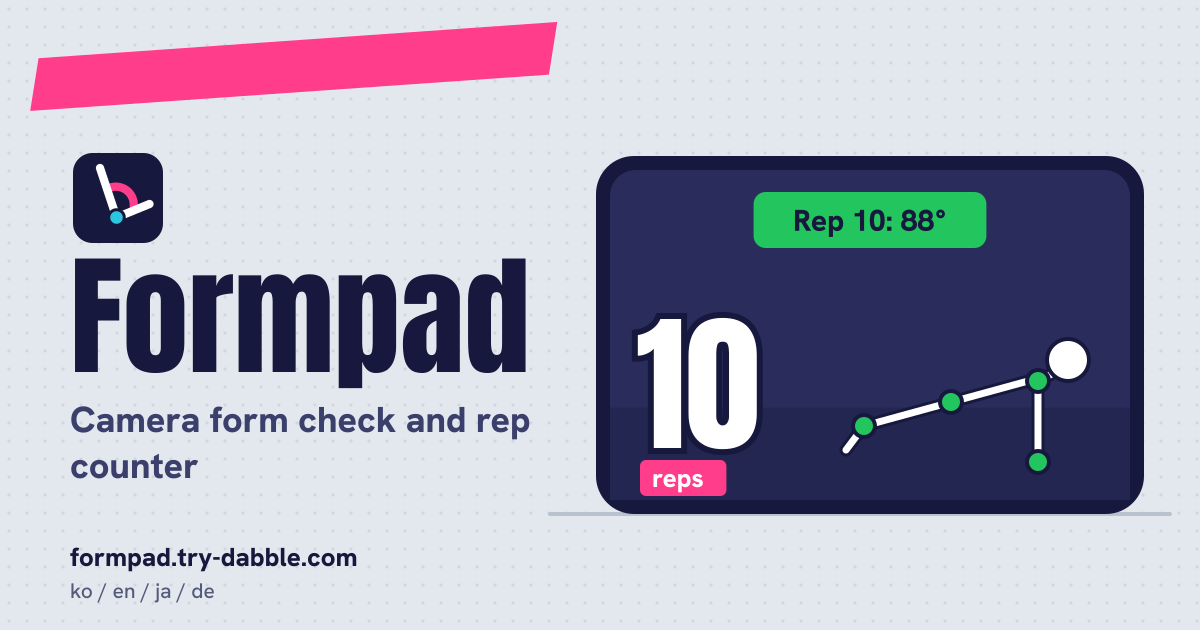
What Formpad is
Prop your phone on the floor or a chair, step back and train: the camera watches you, counts the reps and calls out one thing to fix at a time. Doing 15 squats in the living room, you no longer count in your head, and the reps that didn’t go deep enough are marked as half reps, so right after the set you see how many were full.
There is nothing to install and no account, it is free, there are no ads in the tool, and there are no rep caps or subscriptions. It speaks Korean, English, Japanese and German. The tracker files are fetched once on your first set and kept, so after that it opens without a connection. The camera picture never leaves the device (see “Privacy: nothing leaves your phone” below).
Pick an exercise
There are 8 exercises, and each one is watched either from the side (Side view) or from the front (Front view).
- Squat (Side view): depth is the knee angle (hip–knee–ankle), and it watches for your chest dropping far forward.
- Push-up (Side view): counted by the elbow angle, watching for hips sagging or hips too high.
- Lunge (Side view): counted by the front knee angle, watching that you stay tall.
- Plank (Side view): a hold timer instead of reps. It runs only while your hips stay on the straight shoulder–ankle line.
- Hip hinge (Side view): the deadlift hip hinge pattern with bodyweight or a light weight. Counted by the hip angle (shoulder–hip–knee); if your knees bend like a squat, it tells you to push your hips back.
- Bicep curl (Side view): counted by the elbow angle, checking that the elbow stays at your side and the upper body doesn’t swing.
- Overhead press (Front view): a rep is the elbows locked out with the wrists over the shoulders, and it checks that both arms press evenly.
- Jumping jacks (Front view): a rep needs the arms from your sides to overhead and the feet wide. Feet that stay together make it a half rep.
Phone placement and framing
- Standing exercises (squat, lunge, hip hinge, jumping jacks): prop the phone upright on the floor or a chair, about 2–3 m away, so your whole body fits with a little room above your head and below your feet.
- Push-up and plank: lay the phone sideways (landscape) on the floor or a low step, about 2 m to your side, so it sees you from head to feet.
- Bicep curl and overhead press: upright at about chest height, 1.5–2 m away; your hips must be in the picture.
- For a Side view exercise, turn so one side of your body faces the phone; for a Front view one, face the phone. Each exercise shows a side or front silhouette guide on screen.
- Light should come from in front of you (a lamp or window behind the phone), not from behind you, and snug clothes help. The Front camera is the default so you can see the screen; “Switch camera” changes to the Back camera.
- When it loses you or you are badly framed, the screen shows why (for example “Too close: step back until your whole body fits.”) and it says the fix: “Too dark. Add some light.”, “I can't see you.”, “Step back.” (too close), “Tilt the phone down, or step back.” (feet out of the picture), “Tilt the phone up, or step back.” (head cut off in a front view), “Move to the middle.” (at the edge), “Turn sideways.” (a side exercise seen from the front), “Face the camera.” (a front exercise seen from the side) and “I can't see all your joints.” (something in the way, baggy clothes or the light).
- If it loses you in the middle of a rep, that rep is dropped, not half-counted, and the plank timer pauses.
Calibration: “I can see you”
Pick an exercise and tap “Start the set”; the camera turns on. Before each set you hold still in the start position for about 1.5 seconds (“Get into the start position and hold still”), with every joint the exercise needs in view. An “I can see you” meter fills up, half from how many of the needed joints it sees and half from how long you have been still. When it is full you hear “Go!” and the counting starts.
Live cues and the rep count
- A rep starts when the tracked angle leaves the start position. A full rep has to reach the target angle (depth or lockout) and come back to the start position.
- The rep number is big enough to read from about 2 m. Joints are drawn over the video: green is good, amber is barely seen, red is where the form problem is.
- Form cues are spoken short, with the reason on screen (for example “Push your hips back: less knee bend.”). The spoken cues: squat “Chest up.”; push-up “Hips up.” or “Lower your hips.”; lunge “Stay tall.”; hip hinge “Hips back.”; bicep curl “Elbow in.” and “Don't swing.”; overhead press “Press evenly.”; plank “Hips up.”, “Lower your hips.” or “Get into your plank.”
- Each rep’s tempo is timed: time down, time up and total, and the summary shows the “Average tempo”. During a set there are “Pause”, “End set” and “Switch camera” buttons.
Easy, Normal, Strict and counting only good reps
- Easy, Normal and Strict change the targets and the form limits. New users start on Easy, so a beginner’s first set counts.
- For example, the knee angle at the bottom of a squat: Easy 120° or less, Normal 100° or less, Strict 90° or less. Push-up elbow 110°/95°/85°, bicep curl elbow at the top 75°/60°/50°, overhead press lockout 150°/160°/165°, and in a plank the hips may sit 12%/8%/6% of your body length off the line.
- With “Count only good reps” on (it is off by default), a rep where a form problem was seen for several frames in a row is shown and said but not counted. With it off, those flagged reps count but are marked “flagged”.
Half reps and outlier reps
- There are three kinds of half rep. On screen: “Half rep: short of the full range” (it didn’t reach the depth, lockout or range), “Half rep: didn't get back to the start” (it went into the next rep without coming back) and “Half rep: feet didn't go wide” (jumping jacks). Spoken: “Half rep. Full range.”, “Half rep. All the way back.” and “Half rep. Feet wider.” Half reps are shown and said but never counted.
- Each rep’s deepest (or highest) angle is compared with the median of that set’s full reps (the summary’s “Usual angle (median)”) and shown as, for example, “14° from your usual”. A rep more than 3 times the spread or 8° away, whichever is larger, gets the “outlier” tag. This needs at least 4 full reps.
Plank timer
In the plank the timer runs only while your body is in a straight plank. It pauses when the hips leave the line or it loses you, and resumes by itself when you are back in line. The time is spoken every 10 seconds (“10 seconds”, “20 seconds”), and the summary shows “Held in line”, “Longest hold” and “Times the hold broke”.
Voice, beeps and mute
- Cues and counts are spoken in the UI language with a voice for that language installed on the device (the browser’s own speech voices). If the device has no voice for that language, you get beeps instead: one high beep for each counted rep, a low double beep for a half or flagged rep.
- The sound button switches between Voice, Beeps and Silent. Cues are rate-limited to one every 2.5 seconds at most, and the same cue is not repeated within 8 seconds; the count is always said.
- On iPhone and iPad, sound is unlocked by the “Start the set” tap, and the silent switch can mute the beeps.
- The screen stays on during a set when the browser allows it. Switching away from the app pauses the set and turns the camera off; tap “Resume” when you are back in position.
Summary, history and backup
- After each set you get a “Set summary”: “Reps counted”, “Flagged”, “Half reps”, “Average tempo”, “Usual angle (median)”, a per-rep list (angle, difference from your usual, good, flagged or half and why, the outlier tag), and for a plank the hold times.
- “Your sets on this device” lists the sets done here, newest first; open any set’s summary again, or remove one with “Delete this set”.
- “Save backup file” saves a JSON file and “Restore from file…” brings it back, either added to your sets or replacing them (merge or replace). Restoring the same file twice adds nothing, and a broken file changes nothing. After 10 changes or 7 days it reminds you to save a backup.
- If saving fails (full storage or private mode) it says so, offers “Try saving again” and warns you before you leave. If saved data can’t be read it stops and offers “Download the unreadable data”, “Restore a backup file…” or “Start fresh”.
Body tracking credit
Body tracking: MediaPipe Pose Landmarker (Apache-2.0, Google), the lite model, running in this browser. The library and its program files (about 9–10 MB) and the model (about 5.8 MB), about 15 MB in all, are served from formpad.try-dabble.com itself, not from another site; they are downloaded once on your first set and kept for offline use.
Privacy: nothing leaves your phone
The camera is on only while a set is running, after you tap “Start the set”. Each frame goes only into the body tracker running in this browser on this device and is never recorded, stored or sent. There is no account.
Only numbers stay in this browser on this device: each finished set’s exercise, start and end time, level, per-rep times and angles, good, flagged or half and why, plank times, and your settings. Voice cues use the browser’s built-in speech voices; on some systems that voice is an online voice of the browser or system maker, so only the short cue text, such as “Step back.” or “5”, may go there. Video never does. The backup file goes only where you save or send it.
How it differs from Poseguide
Poseguide matches a still pose to a silhouette for taking pictures. Formpad follows a moving set: it splits it into reps, measures joint angles, flags each rep and times a plank. For logging sets and weights by hand, with no camera, there is Gymac.
What it does not do
Not medical advice. It is a counting and form-cue tool. Single-camera 2D tracking can miss a rounded back, knees caving in and twists, and can misjudge depth when the camera angle is off. Baggy clothes, low light and other people in the picture confuse it, and it tracks one person. Stop if anything hurts.
It doesn’t make programs, doesn’t track weights or sets by hand (that’s Gymac), and doesn’t record video or replay reps. There is no account, no syncing between devices and no subscription. The Guide & Feedback button in the app leads here; send a missing feature or a problem from this page.
Can it tell me my form is fine?
No. It checks the angles it can see and a few form problems. One camera can miss things like a rounded back or knees caving in, so keep an eye on yourself too, and don’t use it as medical advice.
Why didn’t it count my rep?
If it didn’t reach the target angle or didn’t come back to the start, it was a half rep; if it lost you during the rep, the rep was dropped. With “Count only good reps” on, flagged reps aren’t counted either. If it feels too strict, try Easy.
Does it work offline?
Yes. Once the tracker files have been fetched on your first set, it opens and counts without a connection.
Is my video saved anywhere?
No. The picture goes only into the body tracker in this browser and is never recorded, stored or sent. Only numbers such as reps, angles and times are kept, in this browser on this device.
How do I move my sets to a new phone?
Tap “Save backup file” on the old phone, move the file across (email, a cloud drive, a cable) and use “Restore from file…” in Formpad on the new one. Clearing browser data or closing a private window erases your sets, so save a backup now and then.