When talking is faster than typing
The things you want to write down right after a meeting, the sentence that arrives while you are walking, tomorrow’s to-dos you do not want to lose before sleep. All of these are far faster to say than to type. Yet when you actually try to “just say it”, the road is oddly narrow. The mic key on a phone keyboard only types into whichever box happens to be open, and when you finish talking the words are scattered across some app’s form field. It was a keyboard, not a notepad.
So people go looking for a “dictation app”. The app stores have plenty. Open one, though, and the first screen is often a checkout: a few dollars a week, a three-day trial, then auto-renew. The core feature, speech recognition, already ships inside the browser and the operating system; what you are paying for weekly is the notepad on top. Most of them also want an account and want your recordings on their server.
The web has had one good answer for years. A browser dictation notepad like Speechnotes lets you press the mic and watch text pile up on the page, say “period” to get a full stop, and copy it out when you are done. No account, no checkout. But that notepad has no Korean interface. You can pick English or Japanese, yet there is no Korean UI, and the punctuation commands do not understand Korean either: say “마침표” and you get the word, not the mark.
What people want is simple. Press one button, talk, watch the words land in a notepad you can fix right away, keep that text on your own device, and never see a screen asking for money every week. And have “period” and “new line” work in Korean and Japanese too, not only in English.
What Dictpad does
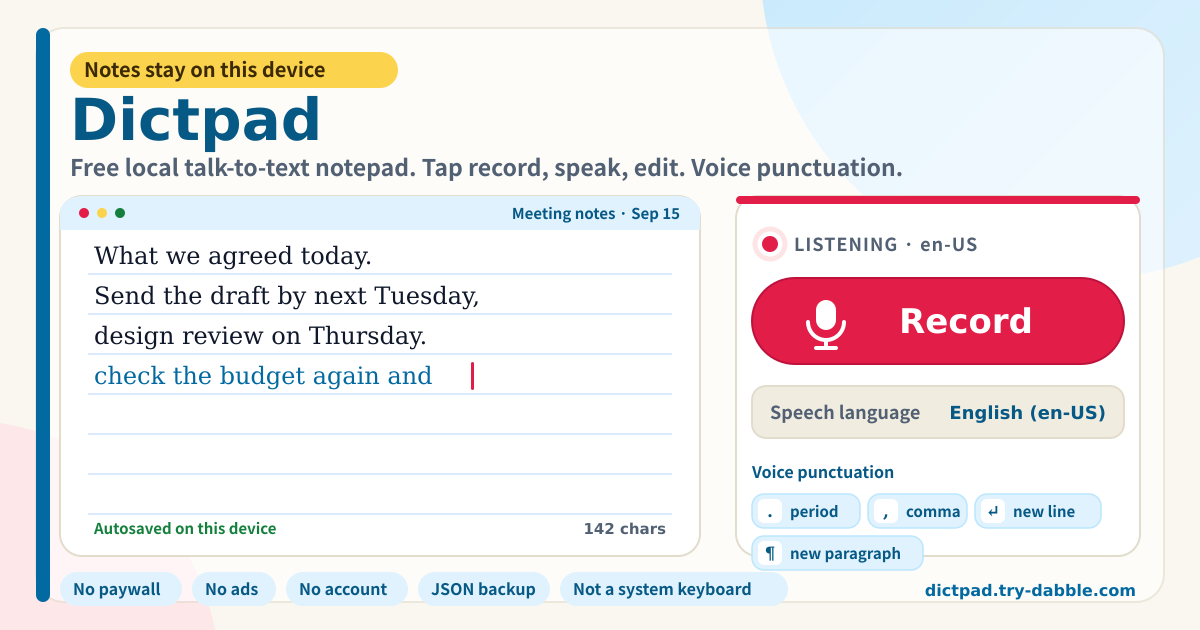
Dictpad is that notepad. Open it and you see a big coral Record button and a ruled notepad. Tap Record and speak: words that are not final yet show first in the sky-blue strip under the button, and the moment a sentence is final it is appended to the end of the notepad. The notepad is an ordinary text box, so while recording you can move the cursor, fix a word, delete a line or type. Tap Stop and the microphone is off; tap Record again and a fresh session starts cleanly.
Punctuation is spoken. With Korean recognition, “마침표”, “쉼표”, “줄바꿈”, “단락” and “물음표” work; with English, “period”, “comma”, “new line”, “new paragraph” and “question mark”; with Japanese, “句点”, “読点”, “改行”, “段落”. Say a command in the middle of a sentence and the mark lands right there. Japanese gets full-width “。” and “、”.
You can keep several notes. Make one with “New note”, give it a title, delete it when it is done. Picking a note loads its text into the notepad, and whatever you type or dictate is saved on this device within a fraction of a second. When you are finished, “Copy” puts the text on the clipboard to paste anywhere, “Download .txt” saves a file, and “Export JSON” packs every note into one backup file.
Banner, mic deck, notepad, voice commands, notes to self, backup
- Amber banner at the top: the promise that notes stay on this device, with no login, no ads, no paid subscription, and that this is an in-browser notepad rather than a system keyboard. Change the screen language (ko/en/ja/de) at the top right.
- Mic deck: a status line (Idle, Starting, Listening) with the recognition code, the “Recognition language” picker (ko-KR, en-US, en-GB, ja-JP and close to thirty in all), the big “Record / Stop” button, and under it the sky-blue strip where not-yet-final speech appears. If the microphone is denied or the connection drops, an explanation appears right there.
- Notepad card: the note picker, “New note”, “Rename”, “Delete”. The big ruled text box, an “Autosaved on this device” mark and a character count. Below it “Copy”, “Download .txt”, “Export JSON”, “Import JSON”, “Delete everything”.
- Voice punctuation card: the command words for the recognition language you picked, next to the mark each one inserts (., , ↵, ¶, ?). Change the language and the card changes with it.
- Good-to-know card: that Chrome on Android starts recording with one tap and keeps the screen awake while recording, that recognition uses the browser’s speech service and so usually needs a connection, that this is not a system keyboard typing into other apps, and that you can edit the text while recording.
- Below that the row of promise chips and the footer (Privacy, Terms, Guide, try-dabble.com). The “Guide & Feedback” button at the bottom right opens this guide page in a new tab.
Where your data stays
Notes, their titles, which note is open and the recognition-language setting all live inside this browser on this device. Nothing goes up to a Dictpad server and there is no account. That is also why opening it in a different browser on the same device shows an empty notepad.
One thing should be said plainly. Turning speech into text is done by the browser’s own speech recognition. Chrome and most other browsers send the sound while you are recording to the browser maker’s speech service and get text back, and that part follows that browser’s privacy policy. Dictpad never receives that audio and never stores it. When you are not recording, the microphone is off. This is also why recognition usually needs an internet connection, while the notepad itself opens offline from the second visit on.
Before you switch devices or clear browser data, press “Export JSON” and keep the file. “Import JSON” on the new device brings every note back with its title. The file is created on this device and sent nowhere.
How does it start on Chrome for Android? Will the screen go dark?
Tap “Record” once. The first time, Chrome asks for microphone permission; allow it and listening starts right there. Where the browser supports it, the screen is kept awake while recording and released when you press “Stop”. Chrome ends a session by itself after silence; when that happens Dictpad immediately starts a new one, so you can keep talking.
If I stop and record again, does the mic get stuck?
It is built not to. “Stop” lowers the listening flag, detaches every event from the old recogniser, aborts it and drops it. The next “Record” always creates a brand-new recogniser. So a late “ended” message from the old session has nobody to land on, and no zombie session is left holding the microphone. This sequence is checked by unit tests against a fake recogniser.
Can I use this as the keyboard in other apps?
No. Dictpad is a notepad that runs inside the browser, not an input method (IME) or system keyboard installed into the operating system. A web page cannot type into another app’s fields. The flow is: dictate here, fix it, press “Copy”, paste it where you need it. In return there is nothing to install, no keyboard permissions to grant, no switching keyboards, and your notes are kept in one place.
Which browsers work?
Chrome and Edge (desktop and Android) work best, because they support live interim results and long continuous sessions. Safari has speech recognition on iOS 14.5+ and macOS, but sessions are short and interim results are limited. Firefox does not enable speech recognition yet. On an unsupported browser the Record button is disabled with the reason shown, and typing, saving and backup still work.
Can I import notes from another dictation app?
JSON that Dictpad exported is read as-is. JSON from other apps is mapped when the note array is called something like notes, items or documents and each entry has a text, body or content field. A bare array of strings works too. Unknown fields are ignored, and a confirmation appears before import to say the current notes will be replaced.
Is it free? Any ads, account or weekly charge?
Everything is free. No feature sits behind a payment, recording time, note count, recognition languages and JSON backup included, and there is no weekly subscription and no trial period. No ads, no account, no login. The tool page loads no ad script; the domain serves an ads.txt only so the publisher record matches the rest of try-dabble. If you have thoughts, use “Send feedback” on this page.