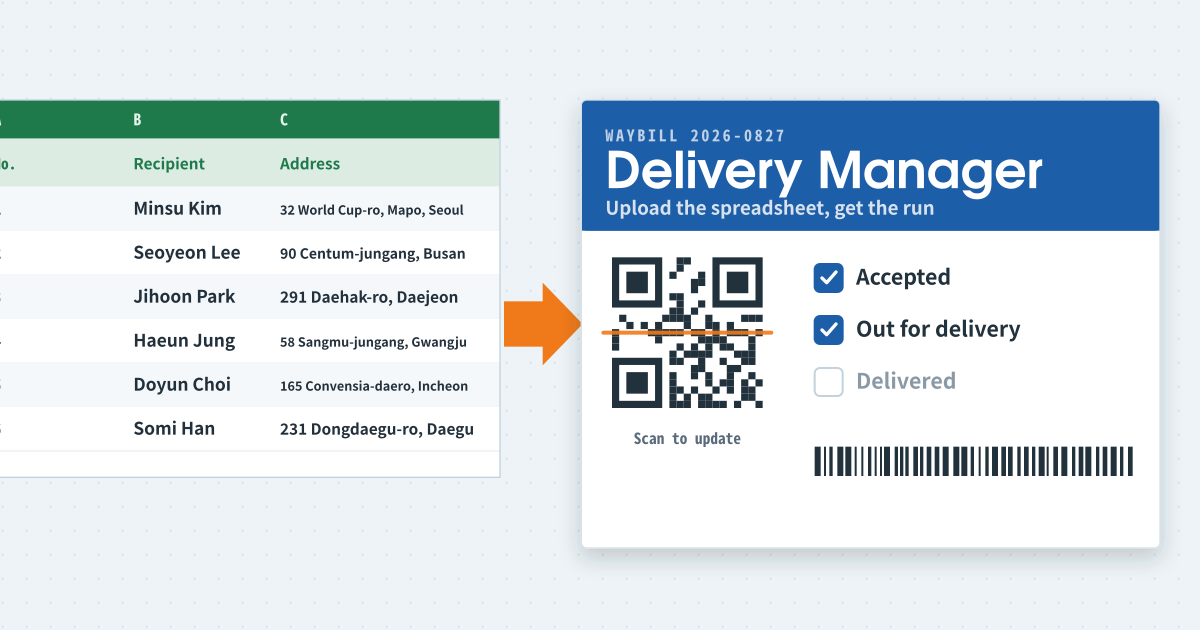
How to lay out a delivery list so scanning works
A delivery list that scans well is a list where every row is one stop and nothing else. Keep a single header row, then one line per address, with no merged cells, no subtotals in the middle, and no second sheet for “extras”. If two parcels go to the same door, they are still one stop; add a quantity column rather than a second row, so a single scan closes the visit.
Give each stop an identifier that cannot repeat: an order number, or the date plus a running number. Names repeat, phone numbers get mistyped, and “Apartment 3” exists in every building. The identifier is what the QR stands for, so it must be unique for the day. Split the address into street and unit fields; the driver reads the unit, the map reads the street.
Sort the rows in the order they will be driven before you upload, and keep a status column even if the tool fills it for you. That way a printout of the same file works as a fallback when a phone dies. Finally, keep one file per day. Yesterday’s file, copied and edited, is fine; a single sheet that grows all month is where wrong scans come from.
Roster in, arrival out
DeliverManager is for people who run tens to a few hundred stops a day. You upload today’s roster from Excel, then scan a QR on site to mark a stop done. It is not a replacement for a carrier TMS. It is for teams that currently mix a spreadsheet and a group chat. Up to a daily cap it runs without a card; the current number is on the pricing page.
A day’s flow
- Align columns for address, recipient, and contact. Keep a header row.
- Upload the file and each stop gets a QR. Print it or leave it with the recipient.
- On arrival, scan the QR. That stop flips to complete.
- The screen shows remaining and done stops, so you do not have to ask the chat “how far are we?”
Camera and Excel
QR confirmation needs camera permission. If the browser blocks it, allow the camera from the icon in the address bar. Common column names map automatically; otherwise you map them on upload. A few hundred rows is fine. Split files if you have thousands.
When not to use it
If you need live vehicle tracking, dispatch for dozens of drivers, or invoicing as the core job, pick another product. DeliverManager stays narrow: run today’s list, record arrival.
Small shops, family kitchens, short-term staff
It fits a small shop that already runs tens of self-deliveries from a spreadsheet. Upload this morning’s columns, and one or two drivers mark arrival with a QR. The point is to stop asking the chat “how far are we?” If you have fewer than ten stops, a paper list may still be faster.
Family kitchens with repeating addresses — side dishes, lunch boxes — use it too. Copy yesterday’s file, edit the missing houses, upload. If names collide, tape the QR at the door. Turn the camera on before you need a photo.
It also lands on sites where short-term staff only know Excel. If there is no time to teach a new form, upload is the front door. Drivers learn faster if they only scan a QR instead of logging in. If you dispatch twenty drivers and invoice as the job, this is the wrong tool.
Do drivers have to install an app?
Drivers are meant to scan a QR and little else. A daily login for every driver makes training longer. The admin upload screen and the scan screen are different jobs.
Can column names differ?
Yes. Common headers map on their own; otherwise pick address, recipient, and contact on the upload screen. Keep a header row. Split files if you have thousands of rows.
Will a scan work in a basement?
A scan currently needs a network. In a dead zone, step out to scan, or wait — offline sync is on the list. We have to define two devices completing the same stop before we queue scans offline.