Chores when your shifts change every week
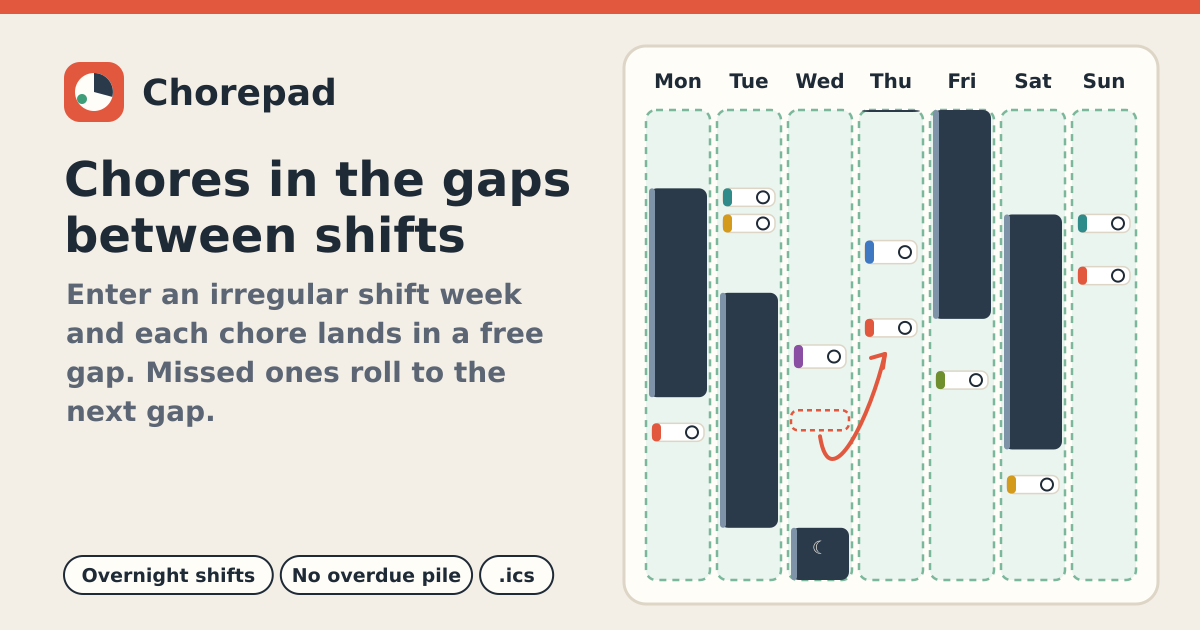
“Laundry on Sunday” falls apart the moment your rota changes. Chorepad starts from this week’s shifts: list each chore with how long it takes and how often it comes round, and it places each one in a free gap between shifts. A missed or skipped chore simply moves to the next free gap — there is no red “days overdue” list.
It is free, with no account and no ads. The plan stays in this browser on this device, and it never sends reminders or nags. It speaks Korean, English, Japanese and German.
1. Put in this week’s shifts
- On the Week tab, tap Add shift and enter the date, start, end and an optional name (e.g. Store). An end earlier than the start (22:00–06:00) is an overnight shift and blocks the next morning too. The + on a day card adds a shift on that day.
- Tap a shift to edit or delete it. If this week looks like the last one, Copy last week brings its shifts over in one go (shifts already there are not doubled).
- If your rota lives in a calendar, use Calendar (.ics) › Choose .ics file… Timed events become shifts (overnight ones too), all-day events are skipped and weekly repeats are added for the next 8 weeks.
2. Fixed blocks and planning rules
- Under Setup › Fixed blocks, add what is the same every week — sleep (23:00–07:00 to start with), commute, classes — with its days. No chores go there.
- Shortest useful gap (30 min to start with) ignores slivers of free time. Chore time per day, at most (1 h 30 min to start with) keeps a day from filling up; the rest goes to the next day.
- Quiet hours (no chores), 22:00–08:00 to start with, and Travel time before and after each shift are set here too.
3. Add your chores
- On the Chores tab, tap Add chore, give it a name and pick how long it takes (15 min to 2 h, or Other). To start quickly, Add example chores puts in dishes, laundry, vacuum and a few more to edit.
- How often: every N days, every N weeks, every N months, or every Nth weekday (every 2nd Saturday, every 6th Saturday). The weekday kind only ever lands on that weekday.
- Like Tody, the interval counts from the last time you did it. If you did a chore recently, fill in Last done (optional) so everything does not land today.
- Preferred days (optional) waits for one of those days, but moves on if that day has no room. Time of day (morning, afternoon, evening) is a preference too.
- Do on the same day as pins two chores together (dust + vacuum): they land on the same day, back to back, and one that is nearly due comes along with the other.
4. Do, skip or move on the week view
- Each day shows shifts (dark), fixed blocks (hatched) and free gaps (green dashed) in time order, with the chores inside the gaps. A day with no free time just says “No free time — chores wait for the next gap.”
- ✓ Done records it for today and the next turn moves one interval on. Skip just means “not now”: the chore goes to the next free gap. Both can be undone with Undo in the message at the bottom.
- Move… lists the free gaps of the next 4 weeks and pins the chore where you pick (📌). On a computer you can also drag a chore onto another free gap. The rest of the plan flows around it; Back to automatic releases it.
- A missed chore is not flagged anywhere. Next time you open the app it is simply in the first free gap from now on — once, not as a pile.
5. After a sick week or a trip: catch up in one tap
- Tap I was away / sick, pick the days (the last 7 by default) and tap Re-plan from today. Nothing is planned in that period, and every chore that came due starts fresh from today.
- To avoid a pile, daily chores come first and monthly ones a few days later, still under your daily limit. Last-done dates and history are kept. It is free — there is nothing to unlock.
- A trip you know about works the same way with future dates. Periods can be removed under Setup › Away periods.
6. Calendar export, fridge sheet and backup
- Calendar (.ics) › Export placed chores saves the shown week or the next 4 weeks as an .ics file for Google, Apple or Outlook Calendar. Times are floating local times, so they show at the same clock time in the calendar’s zone; exporting the same plan again updates the same events.
- Fridge sheet shows the week on one A4 or Letter page; Print sends it to the printer, with each day’s shifts and a tick box per chore.
- Setup › Backup: Save backup (.json) keeps a copy; Restore backup… brings it to another device. A wrong or damaged file is refused with the reason, and nothing is changed.
What it does not do
- No notifications, push messages or nagging. You see the plan when you open the app.
- No account, no sync, no household sharing. Use a backup file to move to another device.
- It does not stay connected to your rota calendar; an .ics file is read once, when you pick it.
Will an update wipe my progress?
No. The saved plan carries a version; a newer app reads and converts older ones, and keeps the original copy in this browser before converting. If an older cached page meets a plan saved by a newer version, it does not overwrite it and asks you to reload.
A chore never gets placed.
Check the line under it on the Chores tab. “Longer than any free gap or your daily limit” means shorten it or raise Chore time per day, at most. “No room in the next 4 weeks” usually means fixed blocks or quiet hours cover too much.