What makes an affirmation usable
An affirmation earns its keep only if you can say it out loud ten times without wincing, so the wording matters more than the sentiment. Three things help. Present tense: “I am keeping my desk clear” gives the mind something to act on now, while “I will be organised someday” postpones it. Specific: a line about one situation, one room or one hour beats a line about your whole life, because at the end of the day you can tell whether it happened. Believable: if a sentence is plainly false to you, repeating it produces an argument, not calm. “I am calm in every meeting” fails for most people; “I can take one breath before I answer” does not. Start with the smaller true thing and let the lines grow as they come true.
Keep each line short enough to say in one breath, in your own words rather than borrowed ones, and keep the set small: three to five lines you actually say beat forty you scroll past. Ten repetitions of one line at the same moment each day, tied to something you already do such as the kettle boiling, is the whole practice. This is a habit aid, a way to rehearse a stance before the day tests it. It is not therapy, and it is no substitute for a clinician, medication or a friend when things are heavier than a sentence can carry.
Write a line, say it, tap once
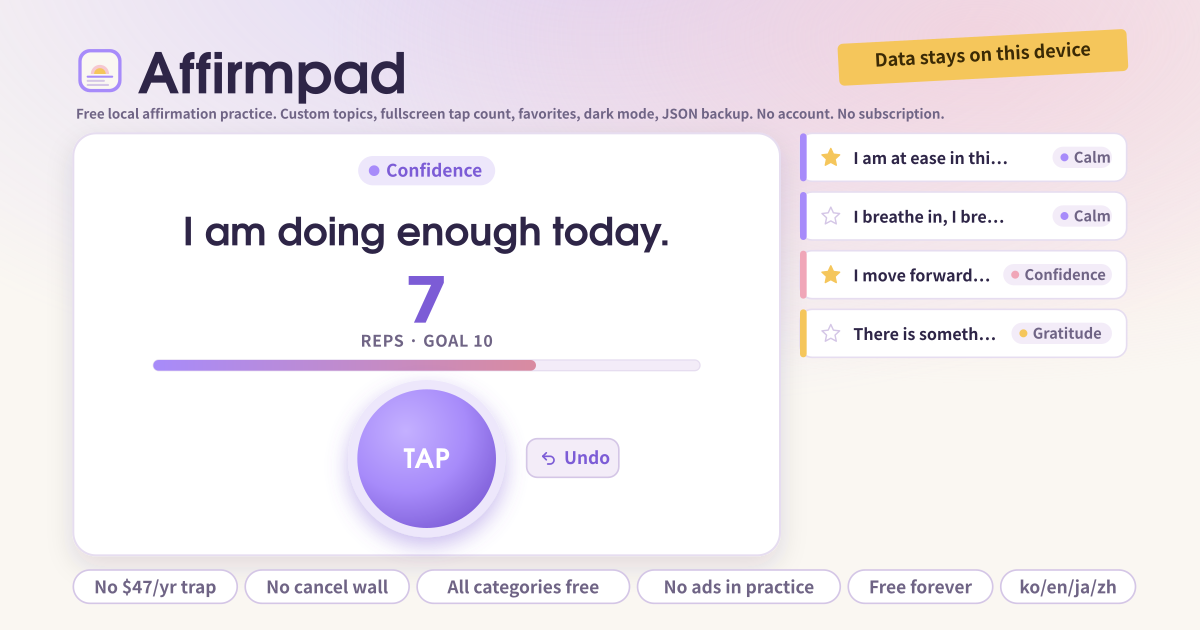
Affirmpad is a small pad for repeating affirmations out loud. Write lines like “I am doing enough today” in your own words and file them under topics such as Confidence, Gratitude or Calm. Pick a line and it appears large in the card at the top; each time you say it, press the round Tap button and the number goes up. A bar fills towards your session goal, and Undo takes one back if you pressed by mistake. A few starter lines in your language are there on the first open, and you can edit or delete every one of them.
Every tap gives a soft click and a short buzz, and each has its own switch at the top; on a device without vibration it simply stays quiet. The Fullscreen button leaves only the sentence, the number and the Tap button on screen, and the count is still there when you come back with Exit or the Escape key. Dark mode turns the cream paper deep indigo and is remembered next time. There is no account, no subscription, no ad and not a single locked feature.
Tap “Add affirmation”, write the sentence and pick a topic if you like. Short, present-tense lines are the easiest to say aloud. Tap a line in the list and it rises into the practice card. Say it once, tap once. When you reach the session goal (10 by default) “Goal reached” appears, and the previous / next arrows move to another line. With the Favorites chip selected, the arrows cycle through favorites only.
For a distraction-free run, tap “Fullscreen”. Where the browser refuses fullscreen (some iPhones) the same stage still fills the screen. Exit or the Escape key brings you back with the count intact. Add the page to your home screen and it opens like an app and works offline. Before switching devices, export JSON from the Backup card.
Practice card, list and settings
- The amber strip at the top: a note that your data stays on this device and that there is no subscription and no ads.
- The header: the app name, the language picker, and three toggles for dark mode, sound and vibration.
- The practice card: the topic pill, the sentence set large, the rep count with its goal bar, the round Tap button, Undo and Reset, previous / next arrows, and the Fullscreen button.
- My affirmations: chips to filter by All, Favorites or a topic, and each row has a star (favorite), the sentence (tap to practise it), and edit / delete. “Add affirmation” and “Manage topics” underneath create new ones.
- Settings: the session goal and text size A / A+ / A++.
- Backup: Export JSON, Import JSON, and Delete all data.
Where your lines stay
Affirmations, topics, practice counts and settings stay on this device; there is no account, no sync, no trial that turns into a yearly charge, no locked topic and no advertising script on the pad. Before switching phones or reinstalling, export JSON from the Backup card and “Import JSON” on the new device brings every line, topic and setting back. The “Delete all data” button wipes the pad if you want a clean start.
I tap but there is no click or vibration.
Check the sound and vibration toggles in the header first. The click follows your device’s silent switch and volume, and the buzz only happens where the device and browser support it. Safari on iPhone does not vibrate for web apps, so it stays quiet there. Counting works exactly the same either way.
Does the count reset when I leave fullscreen?
No. Fullscreen only enlarges the same practice card, so the number stays. Even a page reload brings back the line you were practising and its count. To start over from zero, use the Reset button.