What this app does
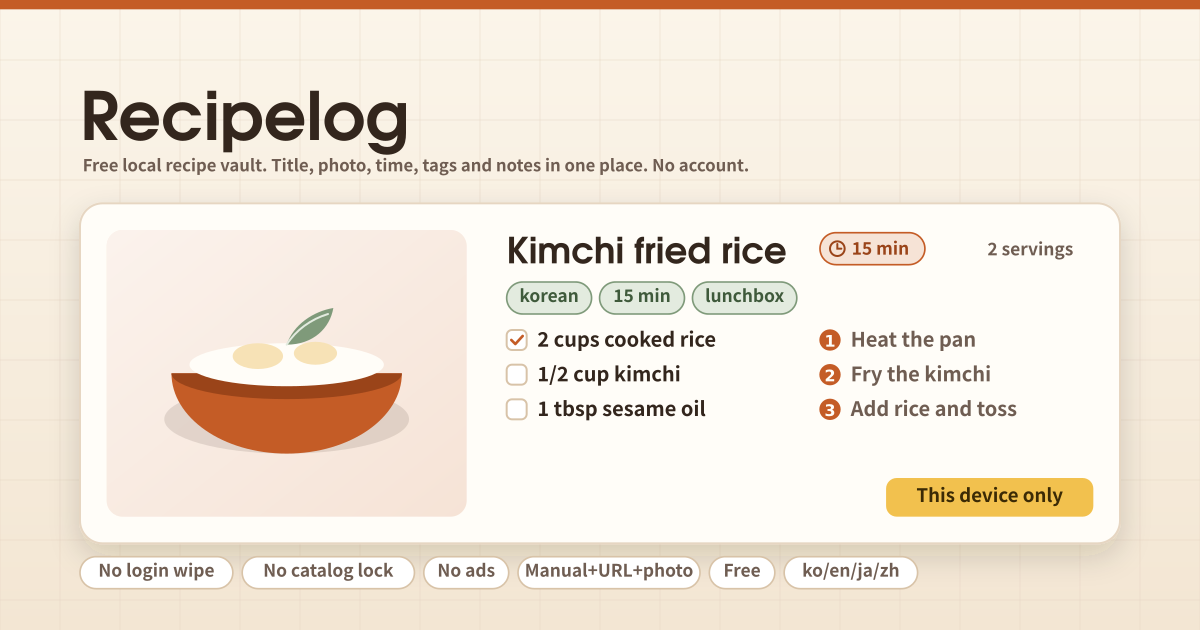
Recipelog is a personal vault for the recipes you have saved all over the place: a TikTok you liked, an Instagram bookmark, a blog post, the email from your mom. Write the title, add a photo, note the time, tags, notes, ingredients and steps, save, and it stays on this device. No account to create, no limit on how many you keep.
Paste a recipe page address and the ingredients and steps are pulled in for you. It works on pages that publish recipe data (most cooking blogs do); sites that block it, such as NYT Cooking or AllRecipes, get a clear message and you paste or type the recipe instead. There is no Instagram or TikTok auto-import: paste the caption and keep a screenshot as the photo.
What is on the screen
- The amber strip at the top: a note that your data stays on this device.
- The search box: finds a word anywhere in the title, tags, notes or ingredients.
- “Add recipe” and “From URL”: both open the same sheet; the second one starts with the address box open.
- Recipe cards: photo, title, total time, servings, tags. Tap one to open it.
- The detail sheet: servings −/+, ingredients, steps, notes, source link, cook mode, add to shopping list, edit, delete.
- The shopping list and backup cards, and the A / A+ / A++ text-size switch.
How to use it
Tap “Add recipe” and give it a title. Pick a photo from your gallery or take one; it is compressed on the device before saving. Fill in prep, cook and total minutes, base servings, comma-separated tags and notes, then put ingredients and steps one per line. Text copied from anywhere can be pasted as-is; each line becomes an item. Save and it appears at the top of the list.
To import from a URL, paste the address and tap “Extract”. When it works, the title, times, servings, ingredients and steps are filled in and the photo is fetched too. When it does not, a message says why and you carry on by pasting into the boxes below. Everything pulled in can be edited before you save.
When cooking, open the recipe and change servings with −/+. Only ingredients that start with a number (“2 cups rice”, “1/2 cup kimchi”) are scaled; free-text lines like “salt to taste” stay as written. “Cook mode” shows one step at a time in big type with a simple timer. “Add to shopping list” drops the ingredients at the current servings onto the shopping list.
Backup and restore
With no login there is no “I signed out and it was all gone”, but clearing browser data or switching devices does remove the recipes on this device. That is what “Export JSON” is for: every recipe, photos included, goes into one file on your device. On a new device or browser, “Import JSON” brings it all back. Same recipes are overwritten and new ones added, so importing twice never doubles anything.
FAQ
Common questions are about where the data lives, why a URL would not import, and whether there are ads or a paid tier. Below is the actual scope.
Are my recipes and photos uploaded anywhere?
No. Recipes, photos, the shopping list and the text size stay in this browser on this device. There is no account and no sync. Only when you tap “Extract” does that one address go to this app’s own server, which reads the page once and returns the result without storing the address or the result. Instagram and TikTok pages are never fetched.
Why did the URL not import?
Only pages that publish recipe data (schema.org/Recipe) can be read. Some sites, such as NYT Cooking and AllRecipes, sit behind a subscription or a bot wall, and some pages simply carry no recipe data. In both cases the app tells you why and hands you the boxes to paste or type the ingredients and steps. Instagram and TikTok videos are not imported by design: paste the caption and keep a screenshot as the photo.
Is there a recipe limit, ads or a paid tier?
No. There is no free tier that locks at 40 recipes, no ads that stay after paying, and no in-app purchase. It is a free tool that runs in the browser with no ads in the tool screen. The only limit is your device’s storage, which is why photos are compressed on the device before saving. Korean, English, Japanese and Chinese are supported.