How it works
ShotLinq is a pair: an iPhone app and a Chrome extension. A Shortcut on the iPhone takes the screenshot and the app uploads it; the extension popup on your PC refreshes the list every 3 seconds. One click on a card puts the image on the PC clipboard as PNG, ready for Ctrl+V.
- Install the app from the App Store and enter your email. There is no password; open the link in the mail within 15 minutes and you are signed in.
- Install the extension in Chrome on your PC, then scan the QR code in its popup with the app to pair. The QR code renews every 5 minutes.
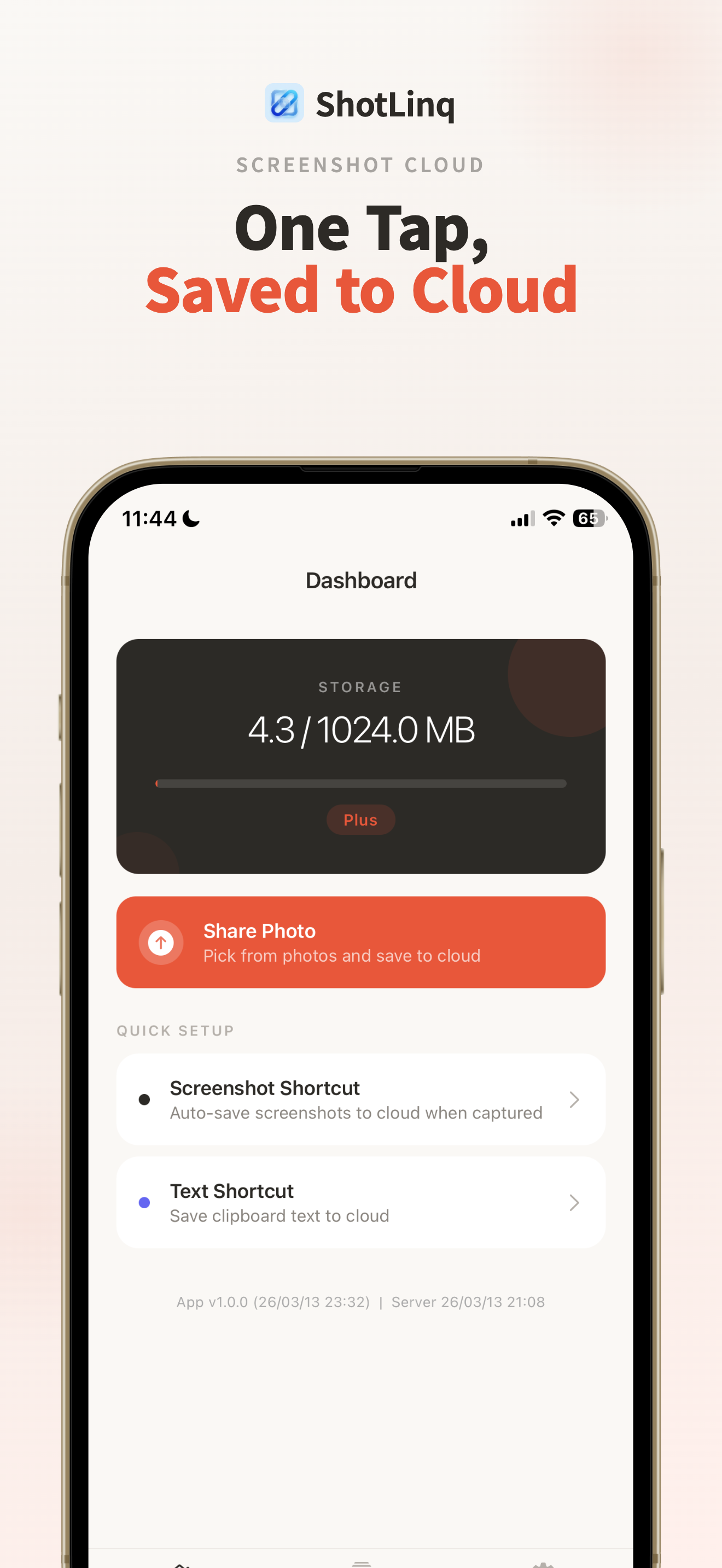
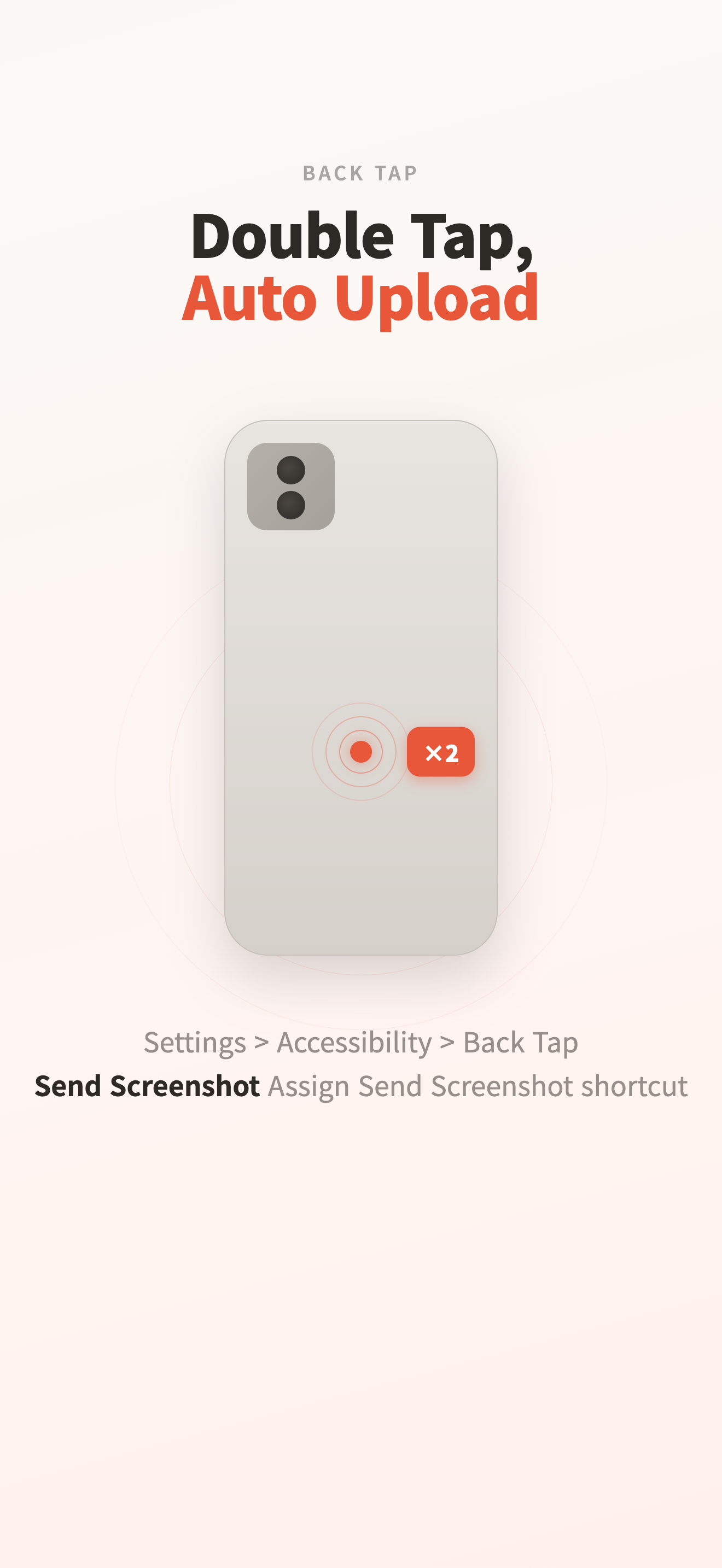
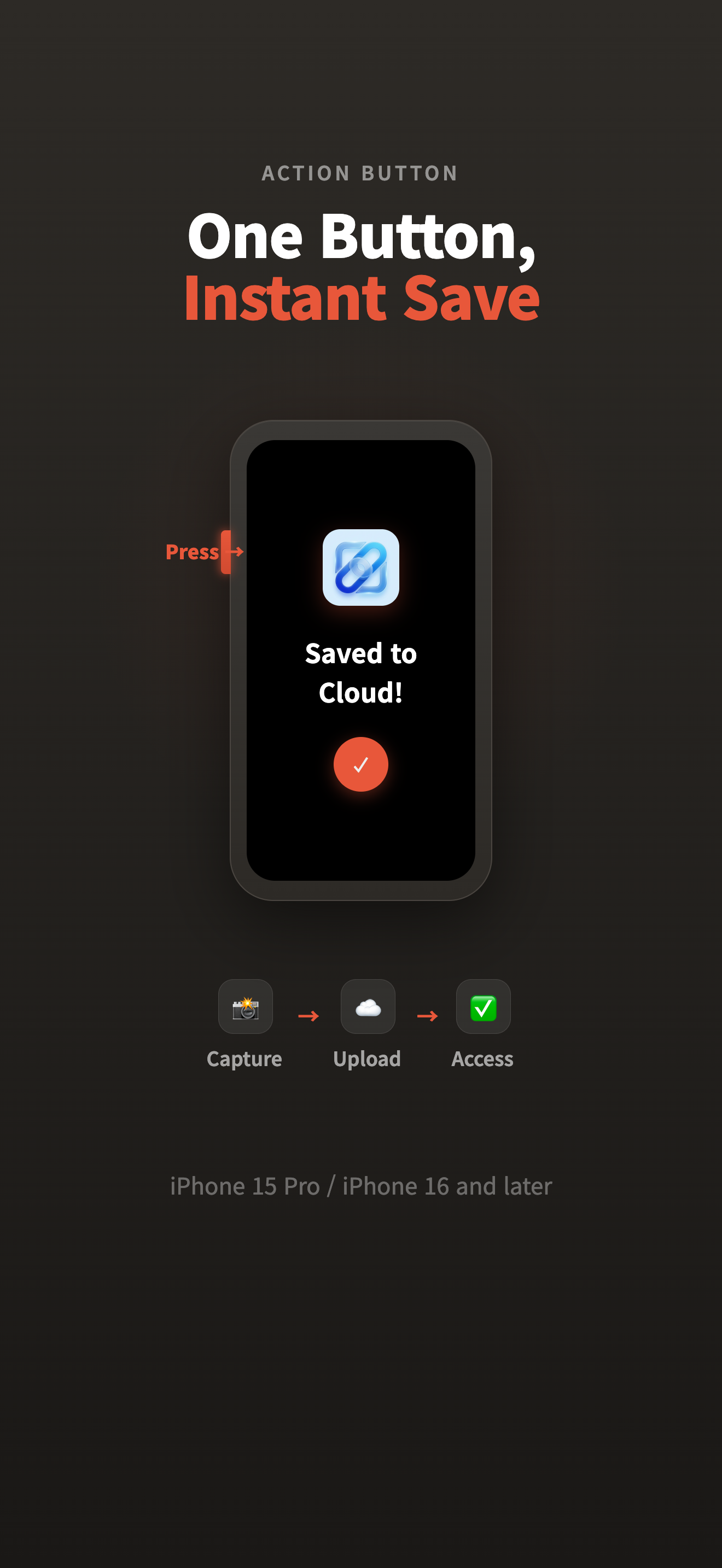
- One tap on the app’s first screen adds the “Send Screenshot” Shortcut. Assign it to Back Tap (Settings > Accessibility > Touch > Back Tap) or to the Action Button on iPhone 15 Pro and later.
- Double-tap the back or press the Action Button: the screenshot is taken and uploaded at once. On the PC, open the extension popup, click the card, and paste.
- Without the Shortcut, the app’s “Share Photo” button uploads any image you pick from the photo library.
Storage and deletion
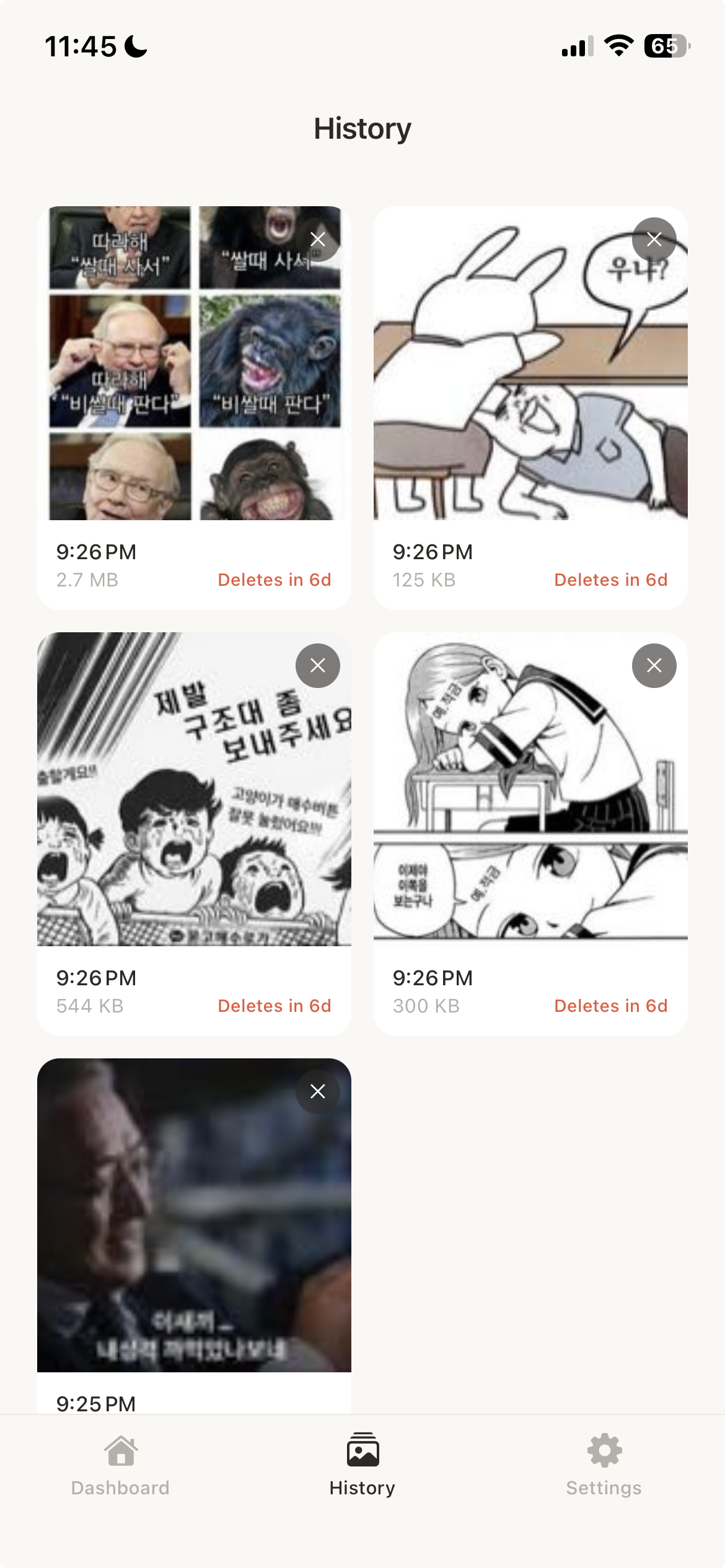
Screenshots live in Cloudflare R2 and are visible only to you, through the app and the extension, after signing in. No public link is ever created. Retention depends on the tier; once it passes, an hourly cleanup job deletes the original and its thumbnail and returns the space. Every card in the app and the extension shows the time left, such as “2d 5h left”.
- Free: 100 MB, kept 3 days after upload, 2 MB per file.
- Plus: 1 GB, kept 7 days after upload, no per-file limit.
- The expiry is fixed at upload time. Upgrading to Plus later does not extend items already uploaded.
- In the app’s History tab, anyone can delete items. The extension’s delete and save-to-file buttons appear only on Plus.
- When storage is full, uploads are refused with “Storage full”. Delete items or move to Plus and uploads resume.
Free and Plus
Plus is a one-time App Store purchase that stays yours; it is not a monthly or yearly subscription. The price is shown in the app’s Settings screen as the store lists it, and “Restore Purchase” on the same screen brings it back on a new device. On Free, the app’s History tab shows one ad after every six items; Plus removes them.
- Storage 100 MB → 1 GB, retention 3 days → 7 days.
- Original quality. Free shrinks each image to 1280 px on the long edge, around 500 KB; Plus uploads the file untouched.
- Text Shortcut. Sends the iPhone clipboard text to the PC the same way; blocked on Free.
- Delete and save-to-file in the extension. Connected browsers 3 → 10.
- If a refund or cancellation returns you to Free, uploaded data stays. New uploads are blocked while you are over 100 MB.
Data and privacy
What the server keeps: your email address, the screenshot files with their size and time, the name of each connected browser (browser and OS family, like “Chrome on Windows”), and a push token for pairing notices. There is no analytics SDK. Ads are Google AdMob, shown only in the History tab for Free users; the first visit asks for iOS tracking permission, and declining requests non-personalized ads only.
You can disconnect any browser from the app’s Devices screen; that extension signs out on its next refresh. To delete the account and its data, email support@try-dabble.com and the files tied to the account are removed with it.
Does the extension popup have to stay open?
Uploads reach the server whether or not the popup is open. The 3-second refresh runs only while the popup is open, so open it when you are ready to paste and the latest list is there. There is no background sync, desktop notification, or icon badge.
Which iPhones and PCs does it work on?
iPhone on iOS 16 or later. There is no iPad, Android, or Mac app. Back Tap works on every iPhone; the Action Button exists on iPhone 15 Pro and iPhone 16 or later. On the PC side it runs wherever Chrome runs, Windows or Mac; Edge and Firefox are not officially supported.
Which image formats are accepted?
The server accepts PNG and JPEG only. Screenshots are PNG already; when you pick a HEIC photo in the app, Free converts it to JPEG and Plus to PNG before upload. The PC clipboard always receives PNG, so a copied JPEG pastes as PNG.
Does the app take the screenshot itself?
No. iOS gives apps no way to capture the screen, so the Shortcut’s “Take Screenshot” action takes it and hands the image to the app, which only uploads it. There is no built-in OCR either; the only way is to add an “Extract Text” action to the Shortcut and combine it with the Plus text Shortcut.
Which languages do the app and extension speak?
Korean, English, and Japanese. The app switches in Settings; the extension has a menu at the bottom of the popup and starts in the browser’s language. The sign-in mail arrives in the same three languages.